Limit the collection to the work required
Choose projects you genuinely need away from the office. Include attachments, images, templates and linked components. A presentation may open while still lacking embedded or referenced media. Also check whether the required application works offline or periodically needs sign-in or licence verification.
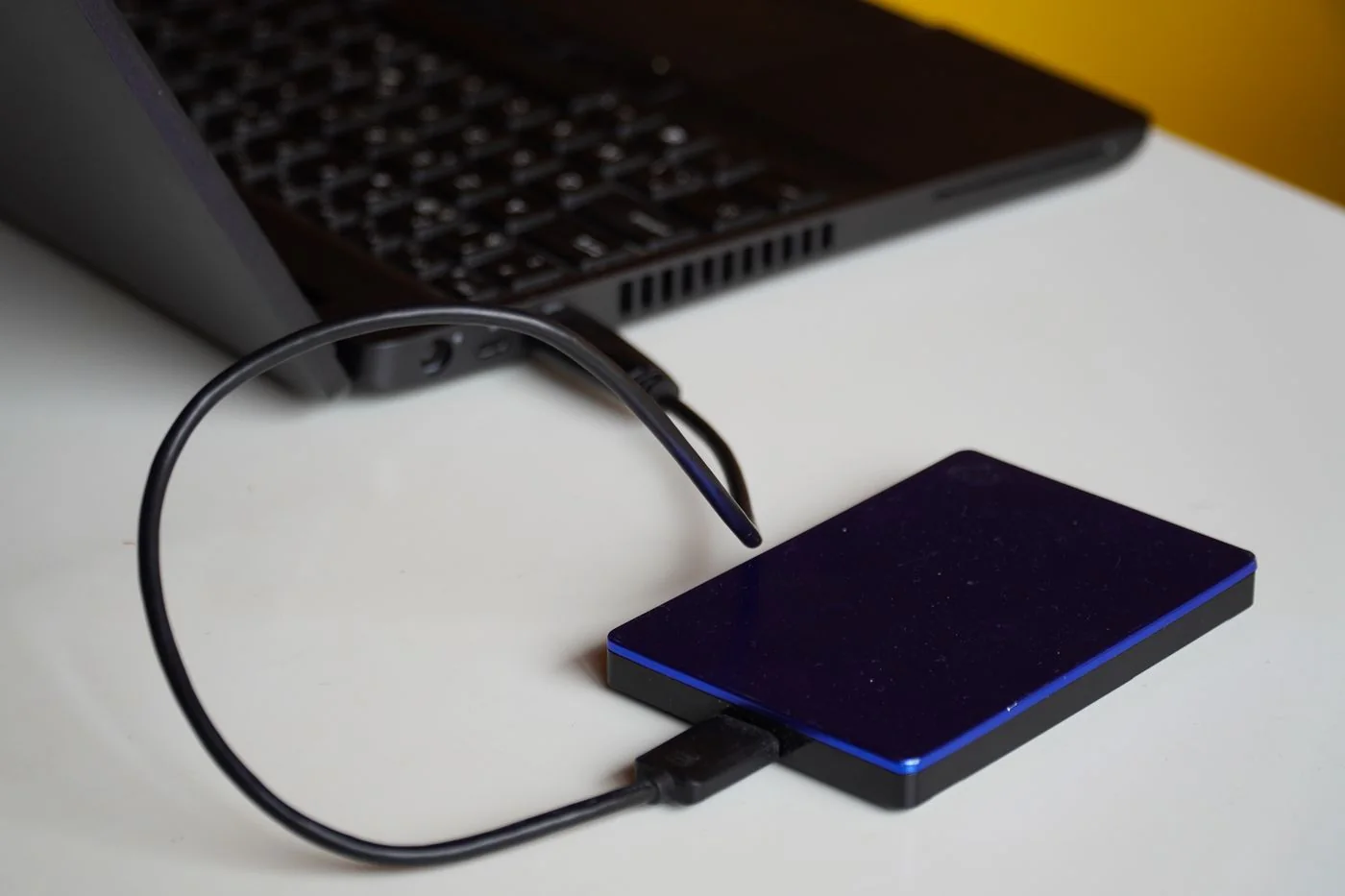
Check available local storage. Downloading an entire large cloud collection may waste space and take a long time. In OneDrive for Windows, required material can be pinned using the option to always keep it on this device. Wait for downloading to finish; selecting the option is not itself confirmation that the contents have arrived.
Test the offline state itself
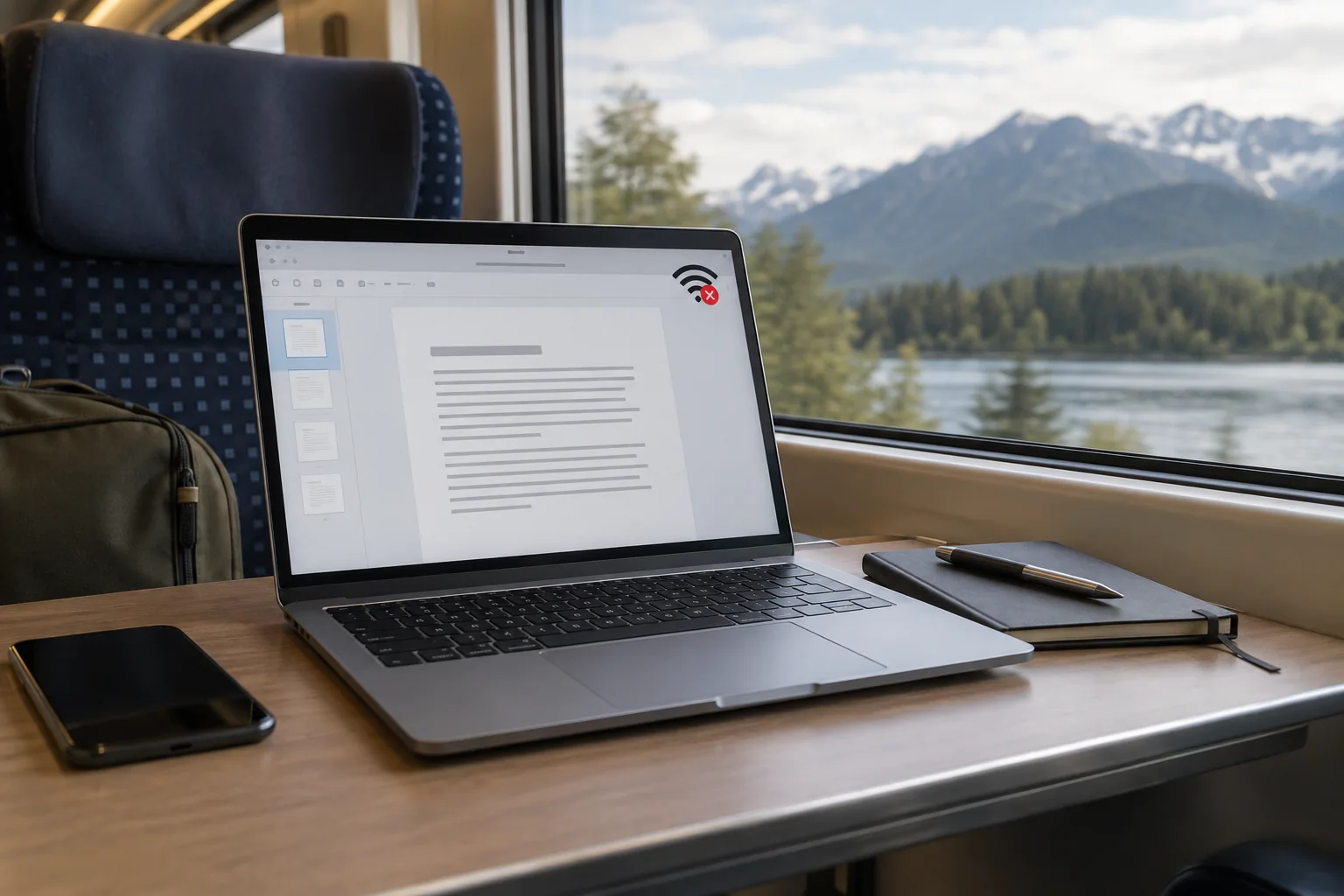
Disconnect the internet briefly for a controlled trial and open several required files. Do not test only one document that was already opened and happens to be cached. Try a previously unused attachment or nested file as well. Restore the connection afterwards so remaining preparation can complete.
If you will edit while away, agree with others which files should not be changed concurrently. Offline editing can later generate conflict copies. Keep important changes identifiable and do not blindly overwrite another version when reconnecting.
Clean up after the trip
Let new changes synchronise fully and inspect the status. Check important results through another device or the web interface as well. Only then release local space through the intended function if required. Ordinary deletion is different and can also remove the cloud copy.
Remove confidential travel copies according to your working rules, particularly when using borrowed equipment. An offline file remains a local data collection even though it originally came from the cloud. Preparation should therefore address protection and later filing as well as access. Keep the tested workflow in mind for the next trip rather than assuming every newly visible cloud file will be ready automatically.