Establish the document's page size
Check the page format in the application. A PDF may not have the same dimensions as the paper in the tray, and one file can contain several page sizes. For mixed documents, inspect more than the first page before assuming a single setting suits the whole job.
Compare the print preview with the actual document. If content is already absent in the preview, that does not demonstrate a mechanical printer fault. Review the print area, page selection and scaling in the application. In a spreadsheet, an accidentally defined print area may exclude individual columns.
Match the tray and driver settings
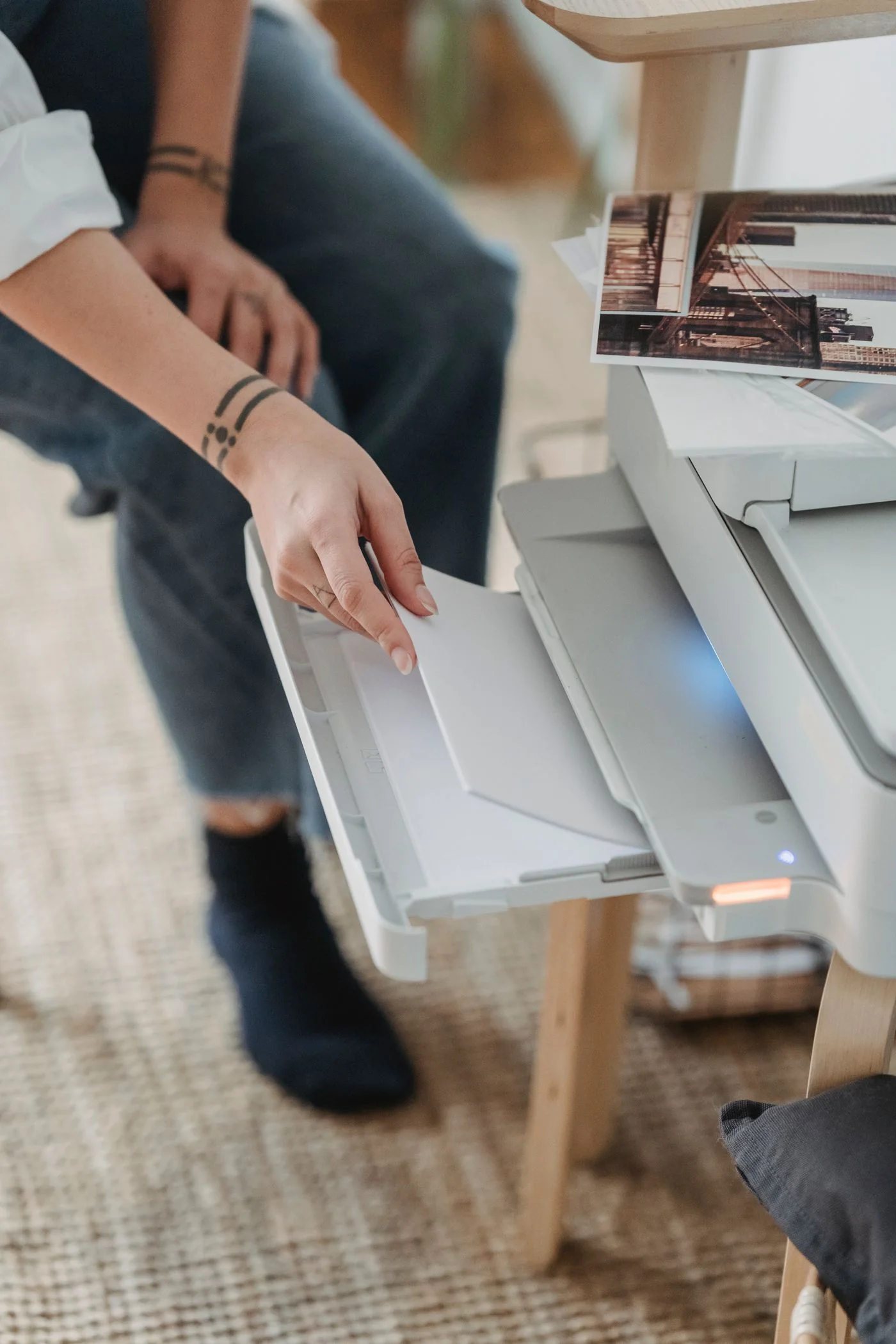
Inspect the loaded paper and the tray's guides. Adjust the guides according to the device instructions without bending the sheets. If the printer stores a paper-size setting for the tray, that description needs to match what is physically loaded.
In the print dialog, confirm the same size and the intended tray. A saved envelope preset or an earlier custom format may still be active. Changing between A4 and Letter is more than changing a label; their different dimensions affect the area available for the content.
Choose scaling deliberately
Fit-to-page options can reduce content to fit the printable area. Printing at actual size preserves dimensions but may crop content when the paper is unsuitable. Choose according to the task: a dimensionally accurate template has different needs from a readable meeting handout.
Not every printer can print to the edge, and borderless output may be limited to certain materials. Do not try to rescue missing edge text with arbitrary negative margins. Check the device's limits and revise the layout if necessary. One test containing visible edge marks can show whether the size and positioning now match your intention before you send the full job.