Identify the affected job
Open the queue for the printer actually selected and compare document name, owner and time. If several printers have similar names, first check which entry the application chose. Waiting will not make a job in the wrong queue appear on the intended device.
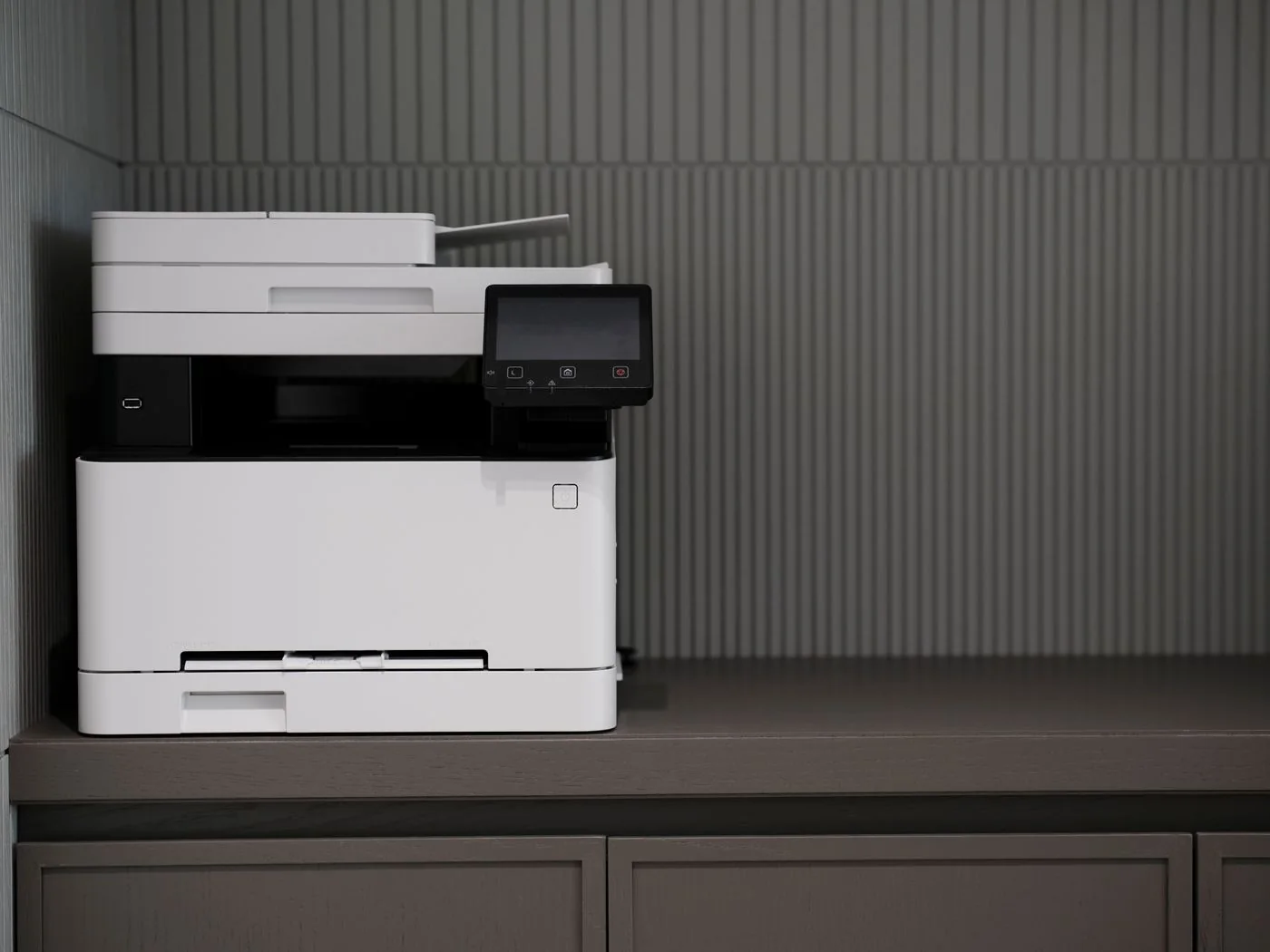
Read the status of the first blocked job. Is it paused, waiting for input or associated with a paper warning? Check the printer's own display as well. Record the message before cancelling the job so a useful clue does not disappear with the entry.
Change only your own test job
Cancel a clearly identified job of your own that is no longer needed using the provided controls. Allow the change to finish processing. Coordinate changes on a shared printer; emptying the entire queue can remove other people's work as well as your own document.
Next send a small, unimportant one-page document. If it prints, the original document or its output path may be involved. Test a copy of that file or another supported output method without overwriting the original. Large images and complex PDFs can need more processing time, so distinguish a slow job from one that has actually failed.
Establish the scope when several jobs fail
If the simple test also stalls, inspect the connection and device status rather than sending more variations of the same document. On shared equipment, ask whether other users are affected too. This helps distinguish a single computer problem from a fault in the common printing route.
Restarting the print service or deleting spool files directly should not be an arbitrary first action. Use the appropriate official instructions or the designated administration process for those steps. After service returns, check whether earlier jobs remain pending before sending the intended document once again.