Distinguish the update processes involved
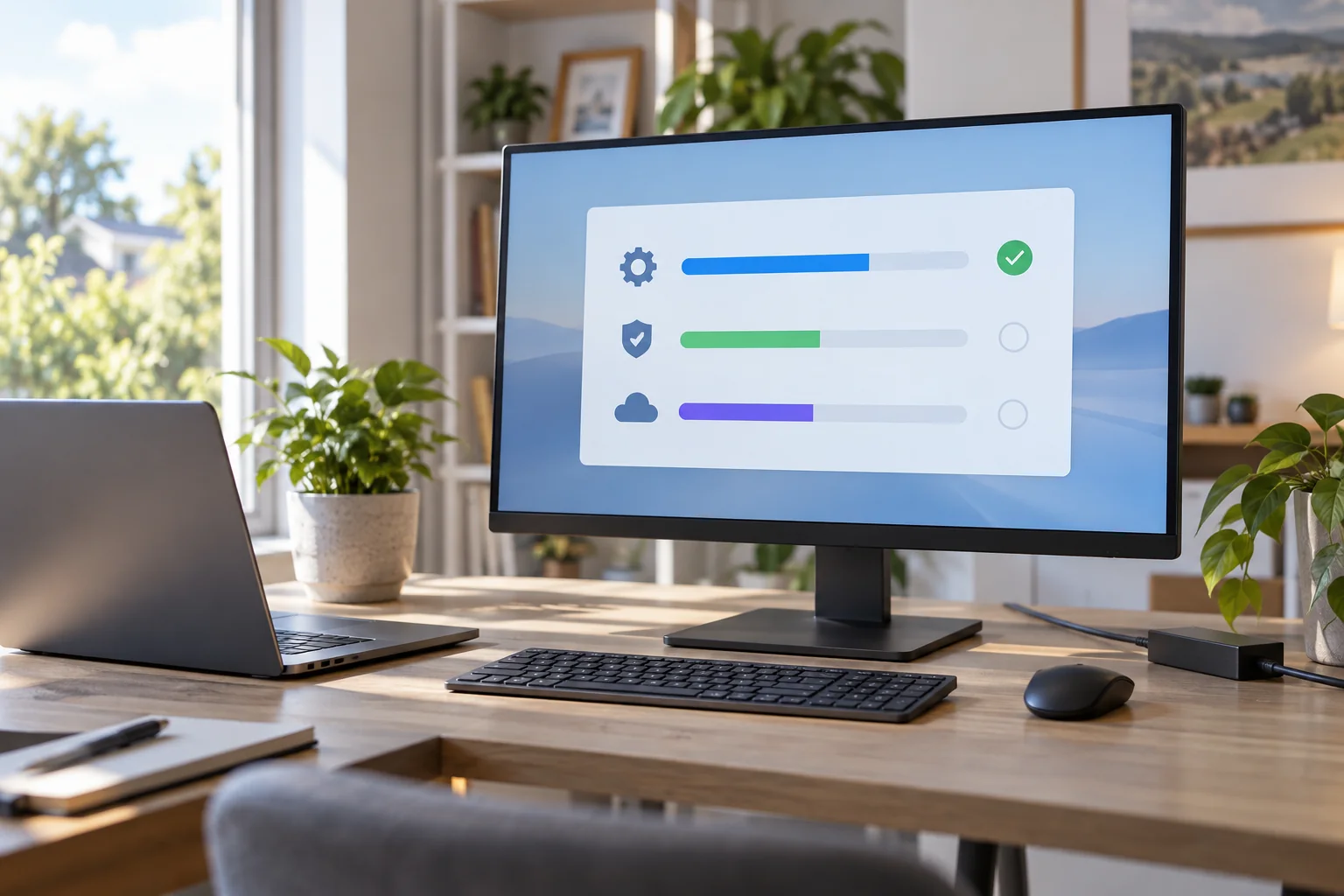
The operating system, browser, office applications and device software may each have their own update route. List the important applications and check whether they update automatically or wait for an action. An up-to-date operating system does not establish that every application is current as well.
On managed equipment, the organisation controls part of this process. Do not independently override those requirements. Instead, report a specific conflict, such as repeated restart prompts during scheduled client calls, with the observed times and messages.
Reserve a window that can actually be used
Review the available active-hours and restart-scheduling controls. Windows provides update functions that help place restarts around working time; the exact interface depends on version and management. A chosen window is useful only if the computer is on and has an adequate power supply then.
Save open work and close applications before deliberately starting a restart. After a substantial change, allow time to sign in and perform a brief check. An appointment beginning at the exact expected end of installation leaves no room for an additional prompt or another restart.
Confirm that the update has finished
After restarting, check whether installation completed successfully or further action remains. Open a typical work file and test the connection to equipment you regularly use. If something fails, record the specific message and affected update before attempting unrelated changes.
Avoid pausing updates indefinitely because one appointment is inconvenient. Use the supported temporary controls and include resuming updates in your routine. If an operating system no longer receives its normal support, moving to a supported solution is a separate planning task. Repeatedly restarting does not resolve that condition, and a quiet update screen is not evidence that the device will continue receiving fixes.