Choose candidates you can explain
Review Downloads by size and date, but open the surrounding folder before removing anything. An old installer may be replaceable; a downloaded invoice may be the only copy you have. Move documents that belong to active work into their proper project folders. If those folders are on the same drive, this improves organisation without freeing capacity.
Uninstall unused applications through the system's application controls rather than deleting their folders manually. Check for local projects, presets or licences first. Removing an application may not remove its associated data, and removing its data can destroy work even when the program is easily downloaded again.
Read cleanup settings before accepting them
Built-in temporary-file tools are a reasonable starting point, but their categories still require attention. Inspect any Downloads, recycle-bin or previous-system-installation option before confirming removal. Emptying the recycle bin removes a recovery route. Removing an earlier installation can affect your ability to roll back an operating-system upgrade.
Windows Storage Sense can automate some cleanup, including management of locally available cloud content. Review its schedule and retention settings rather than assuming every default matches your work. Making a synced file online-only frees its local contents while preserving the cloud copy; deleting that file is a different action and may delete it from synchronised devices as well.
A folder comparison before deletion
Before clearing a large archive, distinguish source files from exported deliverables. A compressed image, PDF or rendered video may be easy to view but cannot necessarily replace the editable project that produced it. Keep the version needed for future changes. If several people use the folder, agree who decides what is retained rather than deleting another person’s apparently old work.
After moving an archive, update shortcuts and application references that pointed to its former location. Test opening the project from the new destination, including any linked assets. Otherwise, the main file may appear intact while photographs, fonts or supporting data remain on the old drive. Free space is only a successful result when the retained material is still usable.
Move large archives with a check
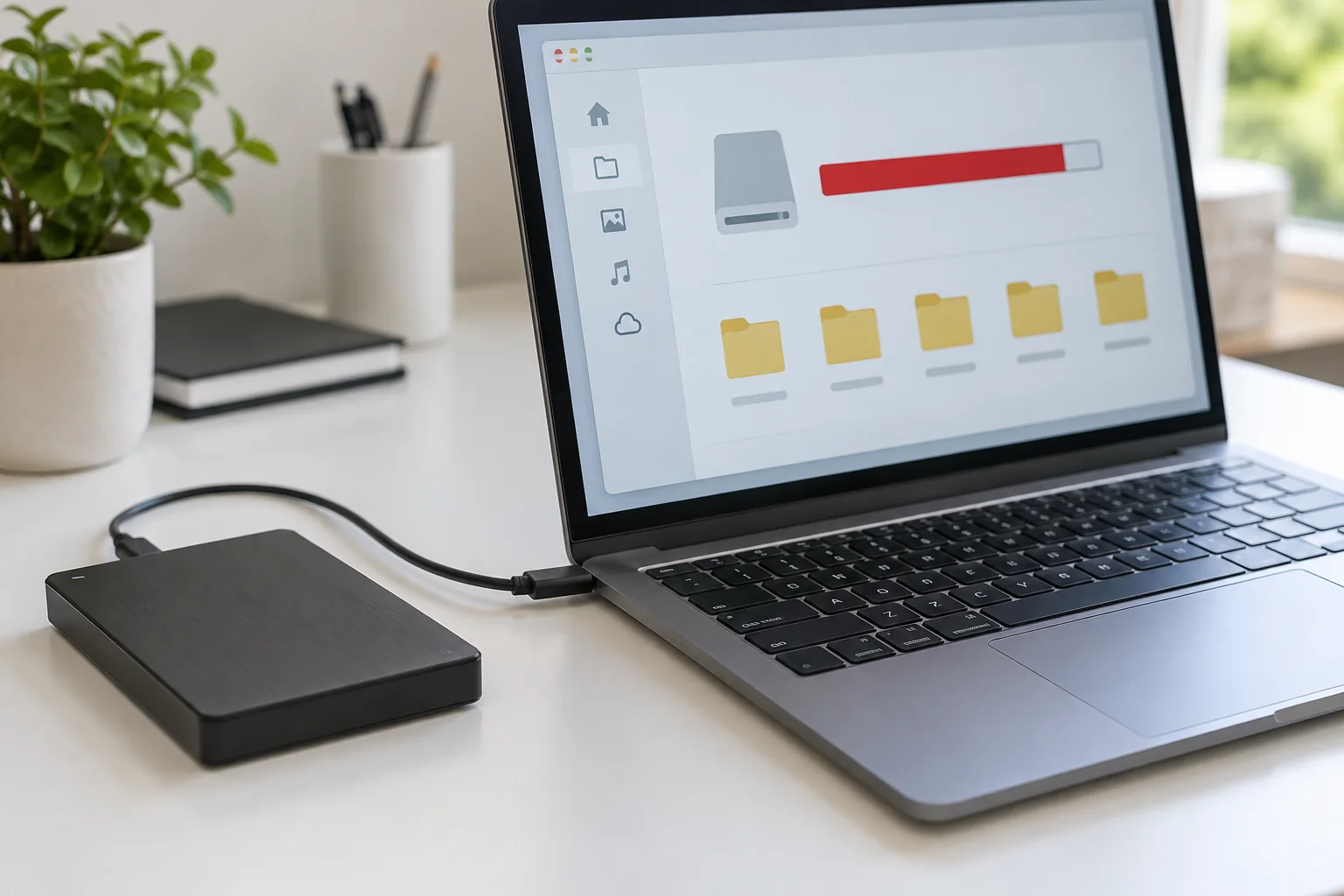
For old projects that should remain available, copy them to a suitable archive destination and open several copied files. Compare folder contents and confirm your backup includes the destination before removing the originals. An external archive drive is a storage location, not automatically a second independent backup.
Finish by checking free capacity again and restarting applications that were affected. Leave room for ordinary updates and growing working files. If the drive fills repeatedly, identify the folder that is growing before buying more storage. Recurring recordings, duplicate exports or an application cache need different long-term arrangements.