Confirm the starting point
Note the operating-system version, device model and the update being offered. For an important business application, check its publisher's compatibility guidance for the proposed system version. Do the same for equipment that requires its own driver. A device working with today's setup does not prove that every future upgrade is supported.
Use the update mechanism built into the operating system, or the manufacturer's documented process. An advertisement claiming that your computer has missing updates is not the place to begin. On a managed work computer, follow the organisation's update schedule and ask before attempting a major upgrade independently.
Make recovery possible before starting
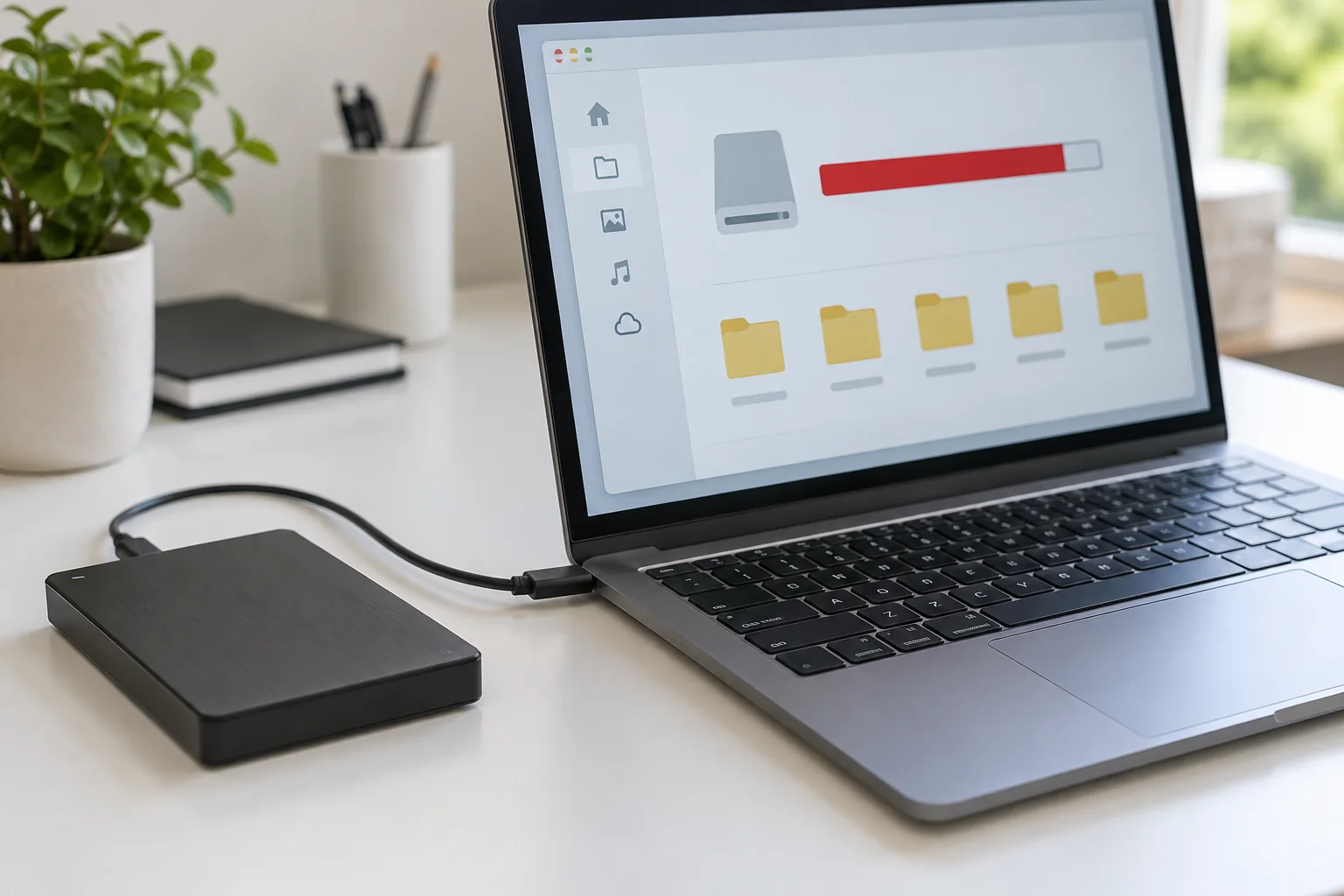
Complete a backup of current documents and check that a recent file can be restored. Save application work and close programs normally. Record any necessary licence details and make sure you can access your account and multifactor-authentication method without relying solely on this computer. If the drive uses encryption, locate the recovery key and keep it somewhere accessible and separate from the device.
Check available storage in the system's storage view. If the updater asks for additional space, use its guidance and review cleanup categories carefully. Do not delete system folders manually to satisfy a space requirement. With a laptop, connect the appropriate power supply and use a dependable network connection for the download.
Give the update a clear working window
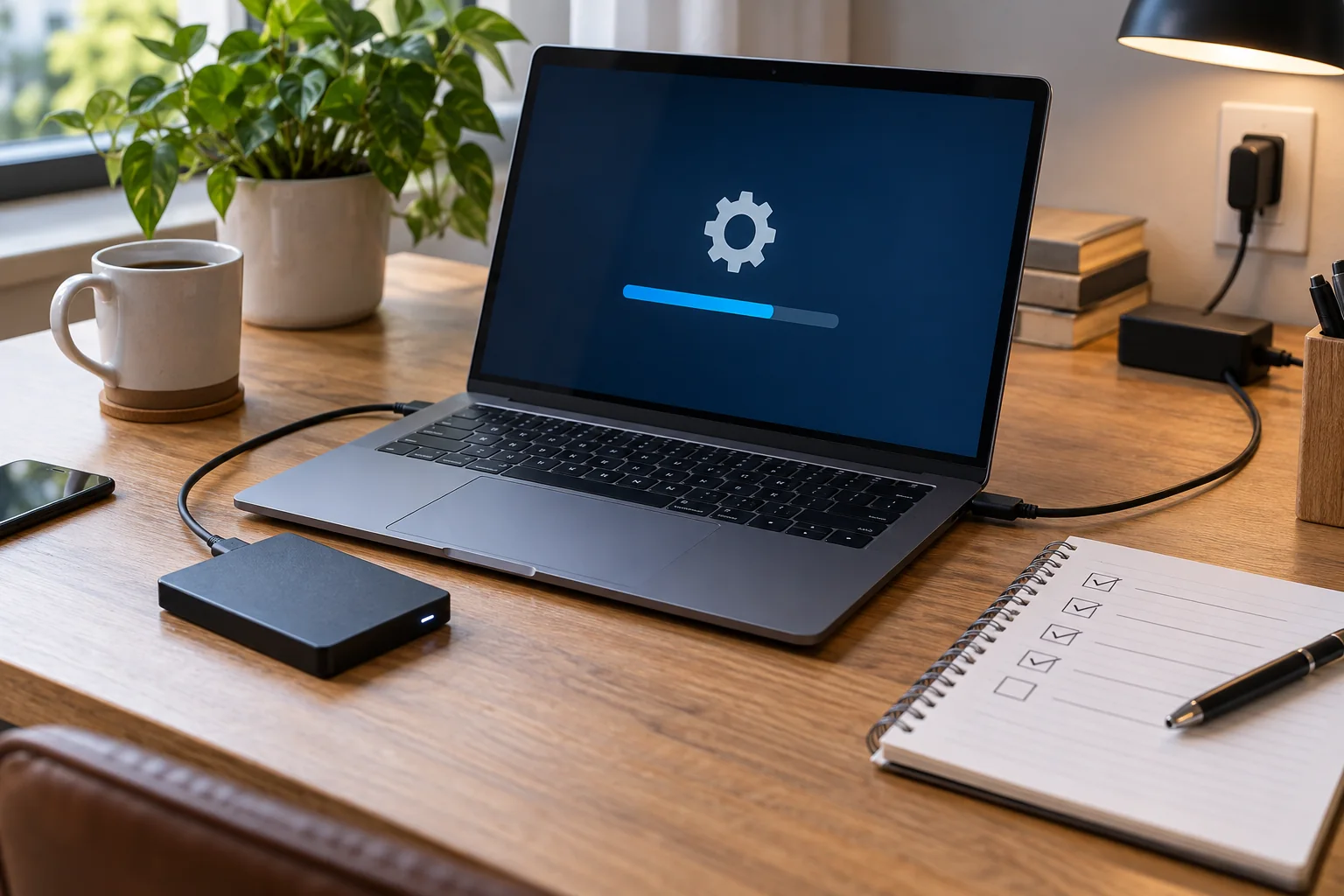
Tell colleagues if a shared resource will be unavailable. Disconnect optional accessories only when the update instructions call for it, and safely eject storage first. Start when you can leave the computer powered and undisturbed. Some stages display little visible progress; follow the official guidance for the particular update rather than imposing an arbitrary timeout.
After the final restart, sign in and allow background work to settle. Check the application you need next, open a representative document and test printing or an external display if they are essential. Confirm that backup and security tools are operating. Note any error exactly. This short acceptance check is more useful than assuming everything is finished because the desktop appeared.