Make a map of the source
Review the usual document, desktop, downloads, pictures and video folders. Add any folders you created at the root of a drive or on external storage. Check inside important applications for their data location and export options. A project visible in an application's recent-files list may live outside the folder you expected.
Include browser bookmarks if they are not already synchronised, but avoid exporting passwords into an unprotected file merely for convenience. Use the password manager's documented migration or account-sync process. Keep authentication recovery details separately so that signing into the new computer does not depend on the old computer remaining available.
Cloud folders require their own check. Confirm that uploads have completed and that you are using the intended account. A visible filename can be an online-only placeholder. If transferring by external drive, make sure the actual contents are downloaded or use the cloud provider's supported sign-in and synchronisation process on the replacement.
Choose a transfer route
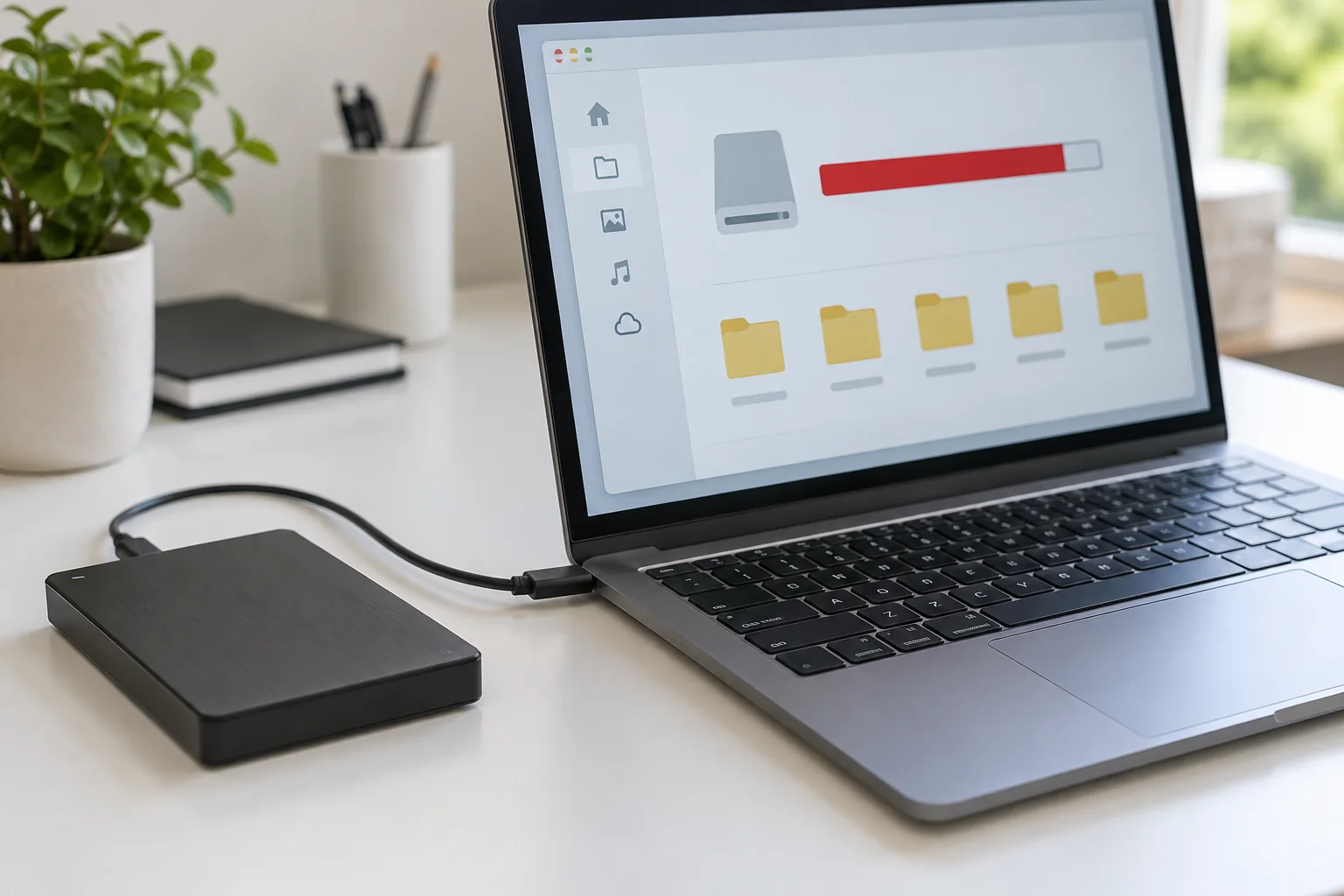
For a manageable set of documents, an external drive allows a straightforward copy with a clear source and destination. Confirm that both computers can read its format and that it has enough capacity. If it already contains files, do not format it as a troubleshooting shortcut. Formatting erases its contents; choose another supported transfer route if necessary.
A local network transfer can suit larger collections, but permissions and connection reliability matter. A cloud transfer avoids a direct cable between machines, yet depends on account access, upload completion and available storage. Select one main method for each set of files to avoid ending up with several partly transferred versions.
Use the operating-system migration tool when it supports the exact old and new setup and you want broader migration. Read what it transfers and what it leaves out. Applications, licences and system settings may have restrictions, particularly across different operating systems or processor architectures. A migration tool is not a promise that every application will run unchanged.
Copy, then verify
Create a clearly named destination and copy rather than move the source files. Compare folder counts and sizes where useful, then open a selection from the destination. Include large files, unusual formats and something recently edited. A successful copy dialogue confirms an operation, but opening the files verifies that the new applications can actually use them.
For databases or specialist projects, follow the application's backup and restore procedure instead of copying a live data folder while the program is running. Confirm the result inside the application. With shared projects, establish a brief changeover point so colleagues do not continue editing the old copy during the move.
Decide when the old copy stops being active
Write down the date you will begin working only from the new computer. Run a backup there and restore a test file. Keep the previous computer or an independent archive for a reasonable checking period, according to the sensitivity of the material and your retention needs.
Once the move is confirmed, sign out and erase the old device using its supported process before passing it on. Do not delete a synchronised project folder as a way of cleaning the old machine: that deletion may propagate to the new one. Separate account removal and device erasure from deleting shared cloud content.