Look for duplicate audio paths
Ask whether anyone in the room has joined from both a laptop and a phone, or whether a room system is also connected. Keep audio on the intended device and leave meeting audio on the others according to the application's controls. Muting only a second microphone may still leave a speaker feeding the first microphone.
If several colleagues are together, choose one supported room-audio arrangement rather than several nearby laptops playing the same conversation. A participant can remain connected for viewing or sharing while its audio is disconnected, where the meeting software supports that setup.
Isolate the return path
Ask participants to mute one microphone at a time briefly and observe when the echo stops. This identifies the likely returning path without blaming whoever hears the echo most clearly. The person hearing their own delayed voice is not necessarily the person whose equipment is returning it.
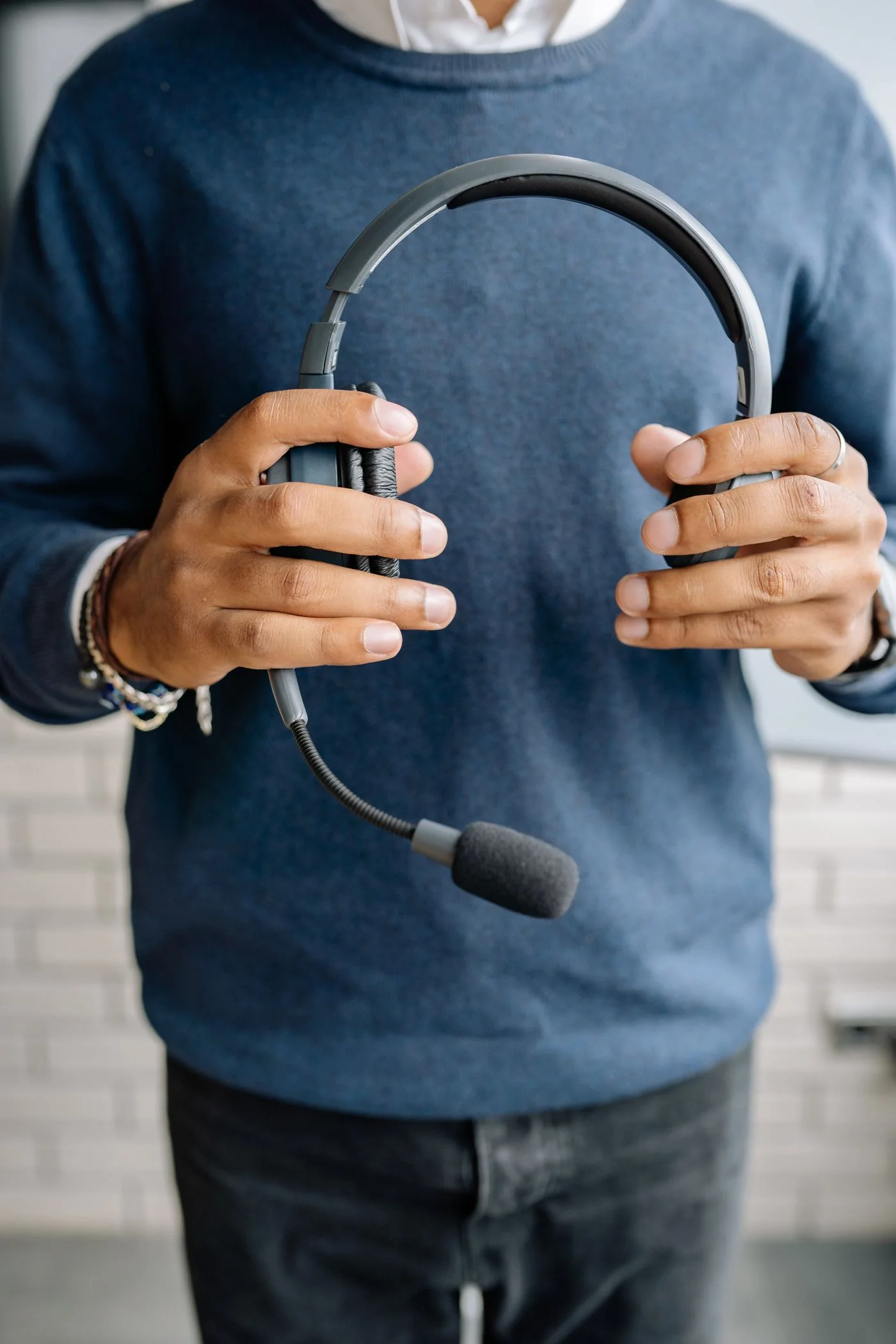
On the implicated setup, lower excessive speaker volume and compare a headset. Select the intended microphone and speaker in the application. Keep the software's ordinary speech processing enabled unless you have a documented reason to change it. Music or original-audio modes can alter echo handling and are not a general cure for conversation problems.
Test after the change
Have another person speak while you remain silent, then reverse roles. Listen for the delayed return rather than only checking that everyone can hear. Avoid recording a real meeting without the required consent; a brief agreed test is enough to confirm the path.
If echo remains with a single device and a correctly selected headset, note the application, headset connection and processing settings for support. Change one variable at a time. Repeatedly increasing microphone gain or buying a new camera will not address an unnoticed second audio connection in the room.