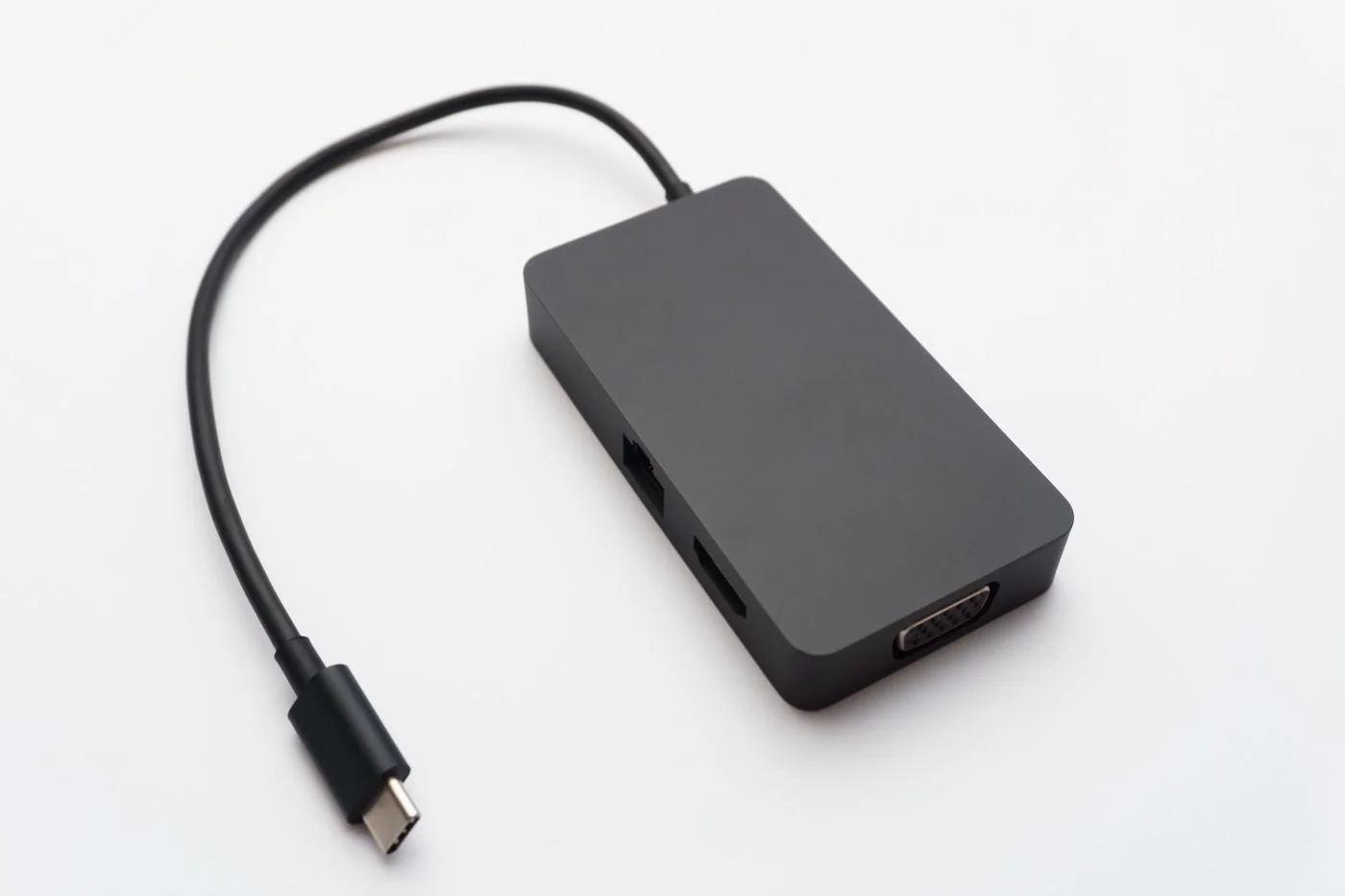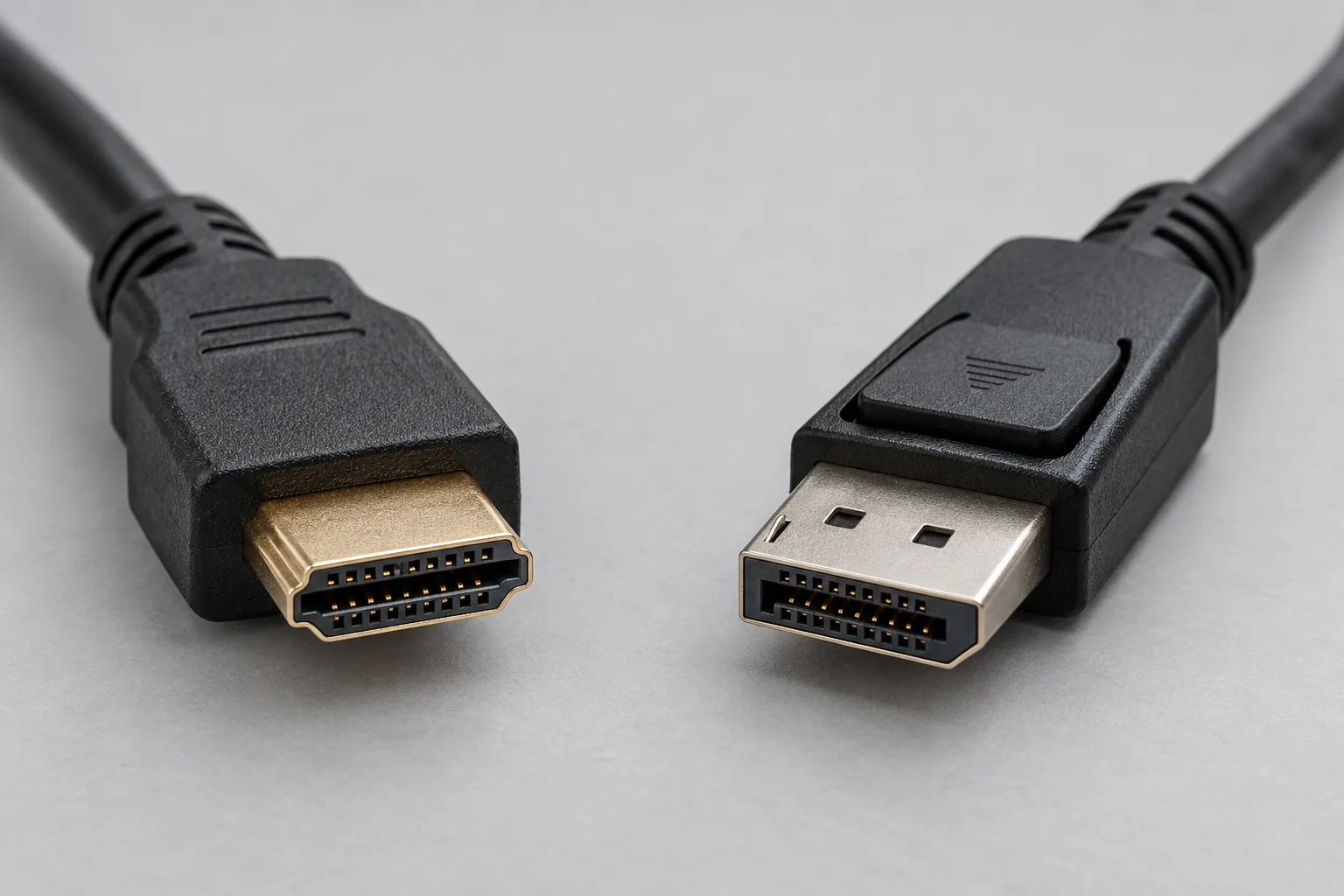
Identify the exact port
Find the computer's full model and configuration, then open its manufacturer's specifications or user guide. Look for a port diagram and the description associated with each socket. A computer may have several USB-C ports with different capabilities. A specification for one side of the machine should not automatically be applied to the other side.
Symbols beside a port can help locate the right entry, but use the documentation to interpret them. If a retailer's listing only says USB-C, ask for the relevant function explicitly. For a monitor, that means supported video output and display limits. For charging, it means whether the computer accepts power through that port and the supported power arrangement.
Keep a small note for your own equipment: left rear port for the documented dock connection, for example, with the model guide linked or saved. This is more reliable than remembering that a cable worked somewhere on the laptop several months ago. Do not stick labels over ventilation openings or force an uncertain connector into a socket.
Separate data speed from display support
A port's data-transfer specification helps when connecting storage, but it does not by itself describe every display capability. Many USB-C display connections use DisplayPort Alternate Mode; Thunderbolt and USB4 connections have their own supported arrangements. The host and accessory documentation should identify the required connection type.
For a display, check resolution, refresh rate and the number of simultaneously supported screens. “Supports a monitor” is incomplete if your intended arrangement uses two high-resolution screens. A dock with several video sockets cannot create unlimited display capability in the computer. Some combinations share bandwidth or have limits on which outputs can be used together.
For storage, consider the slowest part of the chain: computer port, hub, cable and drive. A faster-rated cable does not make a slower drive faster. Similarly, a high-speed drive attached through a lower-capability hub cannot deliver a capability that the upstream connection does not support. Choose for the task you actually perform, such as ordinary documents or repeated large-media transfers.
Read power in both directions
Receiving power and supplying power are different jobs. A laptop may charge through a suitable USB-C port while another connection supplies only accessory power. Check the charger and cable requirements in the computer's guide. A dock's advertised input power is not necessarily the power delivered to the laptop, because the dock can use some itself.
USB Power Delivery provides negotiated power arrangements, but the supported outcome depends on all involved products. Do not assume that any charger with a larger printed wattage supports every required configuration. With multiport chargers, read how power is shared when more than one device is connected. A setup that charges a laptop alone may behave differently after a phone is added.
Inspect the cable's documented power capability separately from its data and video capability. A cable sold primarily for charging may not provide the display or high-speed data path you need. Conversely, a data-capable cable may have a power limit below the intended charging arrangement. Buy an identified cable with specifications you can retain, rather than an unlabelled spare whose history is unknown.
Test the complete arrangement
Connect the minimum equipment first: the documented host port, suitable cable and one accessory. For a monitor, verify a stable picture at the intended settings. For a drive, transfer a harmless test file and reopen it. For charging, check the status under an ordinary workload, not just whether an icon appears.
Add other devices one at a time and watch for changed behaviour. If an extra drive causes disconnects or a second display reduces the available setting, consult the dock's supported combinations. Avoid changing drivers, cables and display settings simultaneously. The purpose of the test is to identify which addition changes the result.
Before buying, you should be able to write a complete requirement: one external display at the chosen resolution and refresh rate, a keyboard, a storage drive and adequate laptop charging through a documented compatible dock. That sentence is a better shopping filter than “USB-C compatible”. It also gives the supplier a concrete compatibility question to answer.