Inventory what must survive
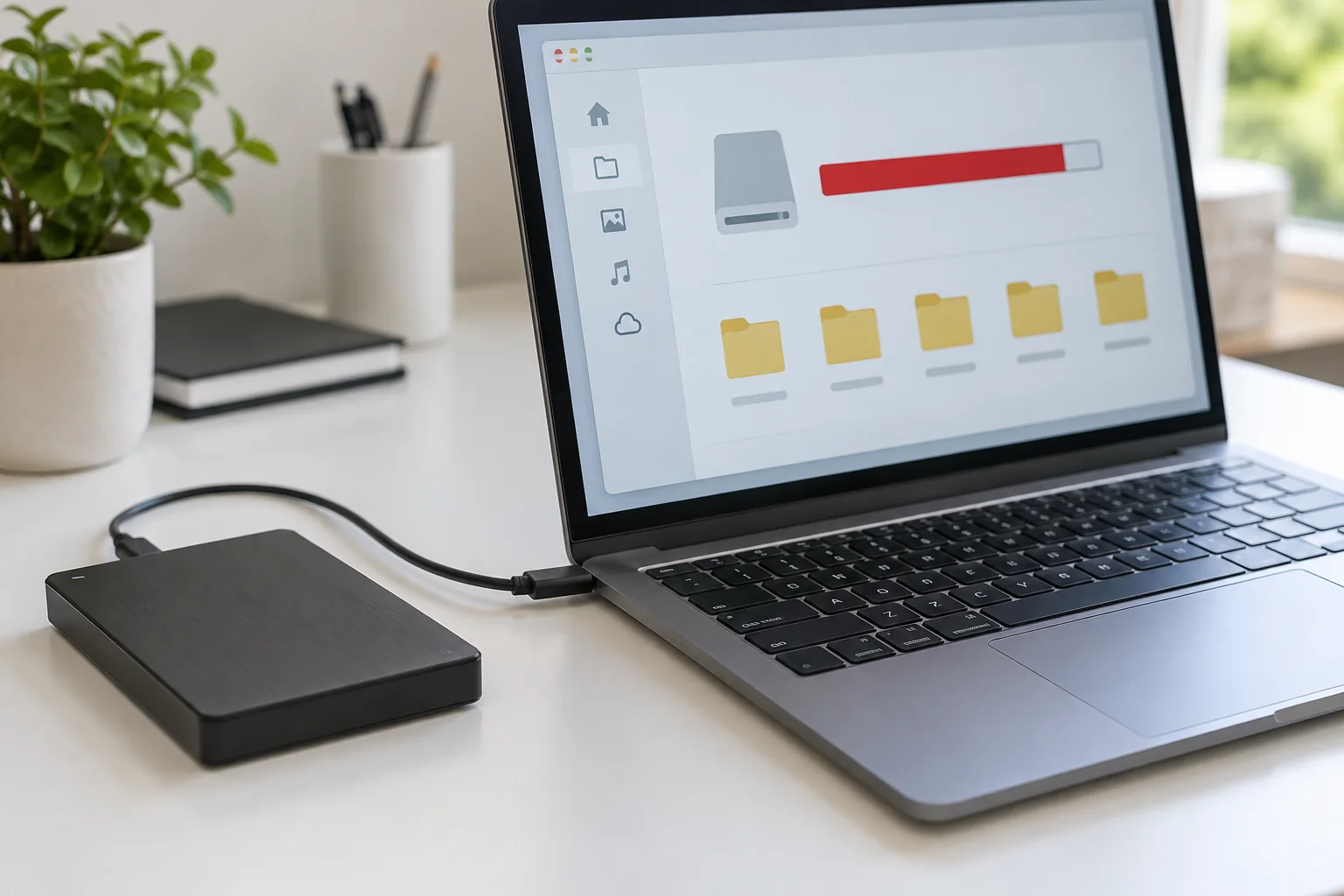
List documents, photographs, local mail archives, browser information, application templates and specialist databases. Check locations outside the usual Documents folder, including the desktop and external drives. A cloud icon is not proof that the latest content has uploaded. Confirm synchronisation status and inspect important files through another device where appropriate.
Make an independent backup and restore a sample file before proceeding. A reset option labelled as keeping personal files is not a substitute for a backup. Read the official description of what that option retains and removes. Installed applications and settings may still need to be recreated even if documents are preserved.
Prepare access and installation information
Locate the encryption recovery key if the system uses one. Store it where it remains accessible without this computer. Check account passwords, recovery methods and multifactor authentication. If the only authentication method is an application on the device being erased, arrange an approved alternative before starting.
List applications and their legitimate download sources. Keep licence information and any installer you must retain under its terms. For specialist software, confirm whether the licence should be deactivated before a reset and how data is restored afterwards. Do not assume copying a program folder will recreate its installation.
Record essential network, printer and accessibility settings. A screenshot can help, but avoid collecting passwords in an unprotected image. For an employer-owned computer, stop and use the organisation's process: enrolment, encryption and software deployment may be centrally managed.
Read the selected operation carefully
Different recovery choices address different problems. A system restore, operating-system reinstall and full device erase are not interchangeable. Confirm the exact drive and scope involved. Disconnect unrelated storage safely when the official instructions recommend it, reducing the chance of selecting the wrong destination.
Use reliable power and allow a clear time window. Download required instructions beforehand if you may lose internet access during recovery. Do not interrupt a progressing reset simply because the display stays unchanged for a while; follow the provider's guidance for the observed stage.
Plan the first hour afterwards
After recovery, install system updates through official controls, establish account security and verify encryption recovery information. Restore files from the checked backup, then install the applications needed for your next task. Test a representative document and essential equipment before assuming the old working environment is back.
Keep the backup until the recovered setup has been used successfully and a new backup has been tested. If the original problem remains, avoid repeating the same reset without new evidence. Record what changed and what did not, then investigate the specific application, accessory or hardware involved.