Start at the accessory
Charge it or fit the specified battery, then turn it on. Consult its instructions for entering pairing mode; merely switching it on may reconnect to a previous host instead. If it supports several computers, select the intended slot and note which slot you use for this machine.
Check that the accessory actually uses Bluetooth. Some wireless devices use a dedicated USB receiver, and that receiver may have its own pairing system. A wireless label does not make the device available in the computer's Bluetooth discovery list. Use the manufacturer's supported method for the model.
Reconnect deliberately
Enable Bluetooth on the computer and check whether the existing device entry can connect. If it cannot and the official guidance recommends pairing again, remove only the relevant entry, place the accessory in pairing mode and add it through the system's Bluetooth controls. Keep another input method available before removing the only keyboard or mouse you can use.
Verify the device name before accepting a pairing request. For a keyboard that asks you to type a code, follow the displayed instructions on the correct keyboard. Do not approve an unexpected nearby device simply because it appears during discovery.
Check the intended function
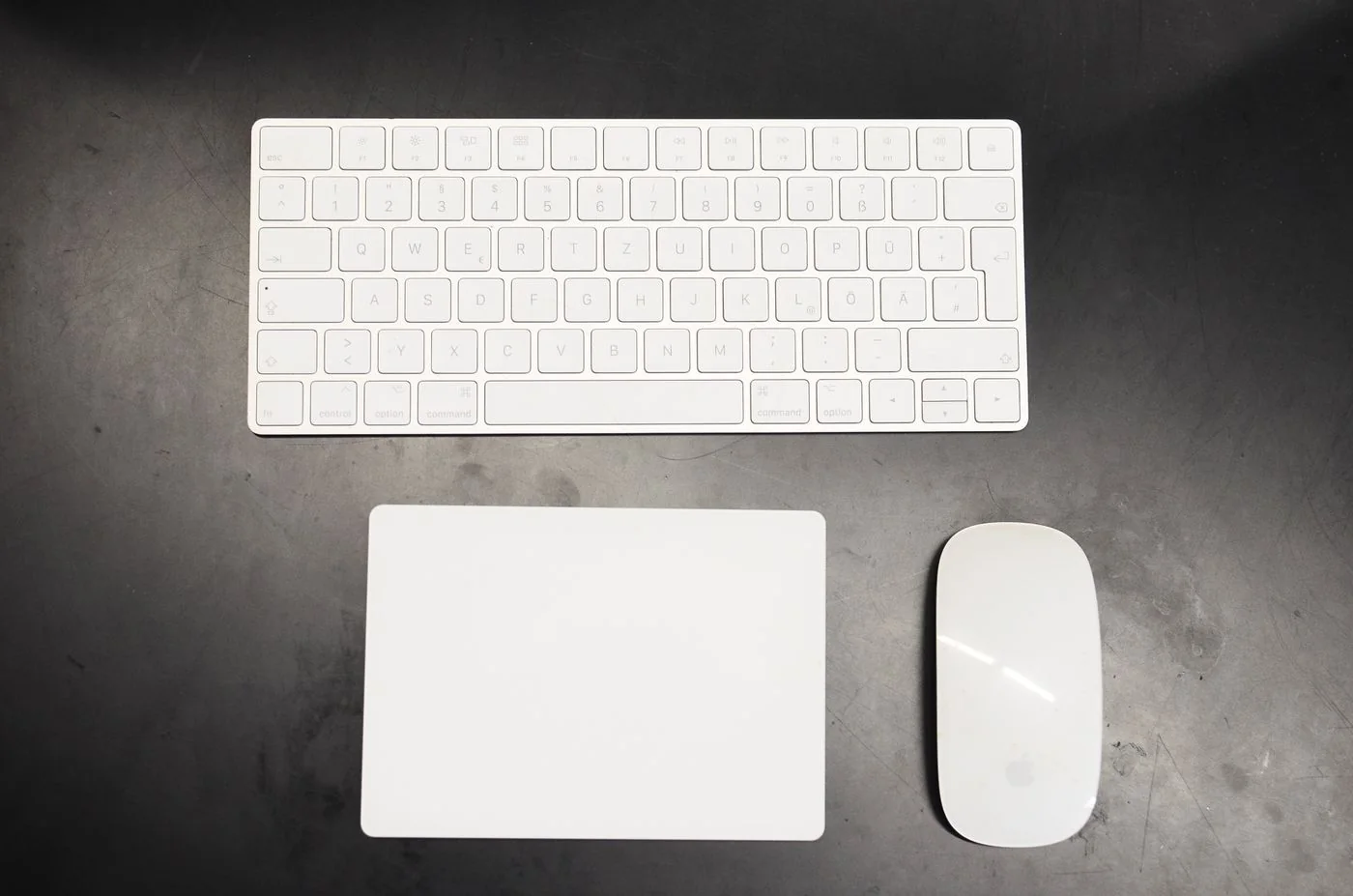
Test ordinary use after connection: pointer movement, typing or both headset input and output. A connected audio device may still need to be selected in the meeting application. Move within the normal working area and see whether the connection remains stable.
If reconnection repeatedly fails, record whether it happens after sleep, after switching computers or only in one location. Update through official system and accessory channels where relevant. Avoid resetting the accessory to factory settings without understanding which other pairings it will erase. A targeted comparison preserves the working connections you still need.