Reduce the connection to a clear test
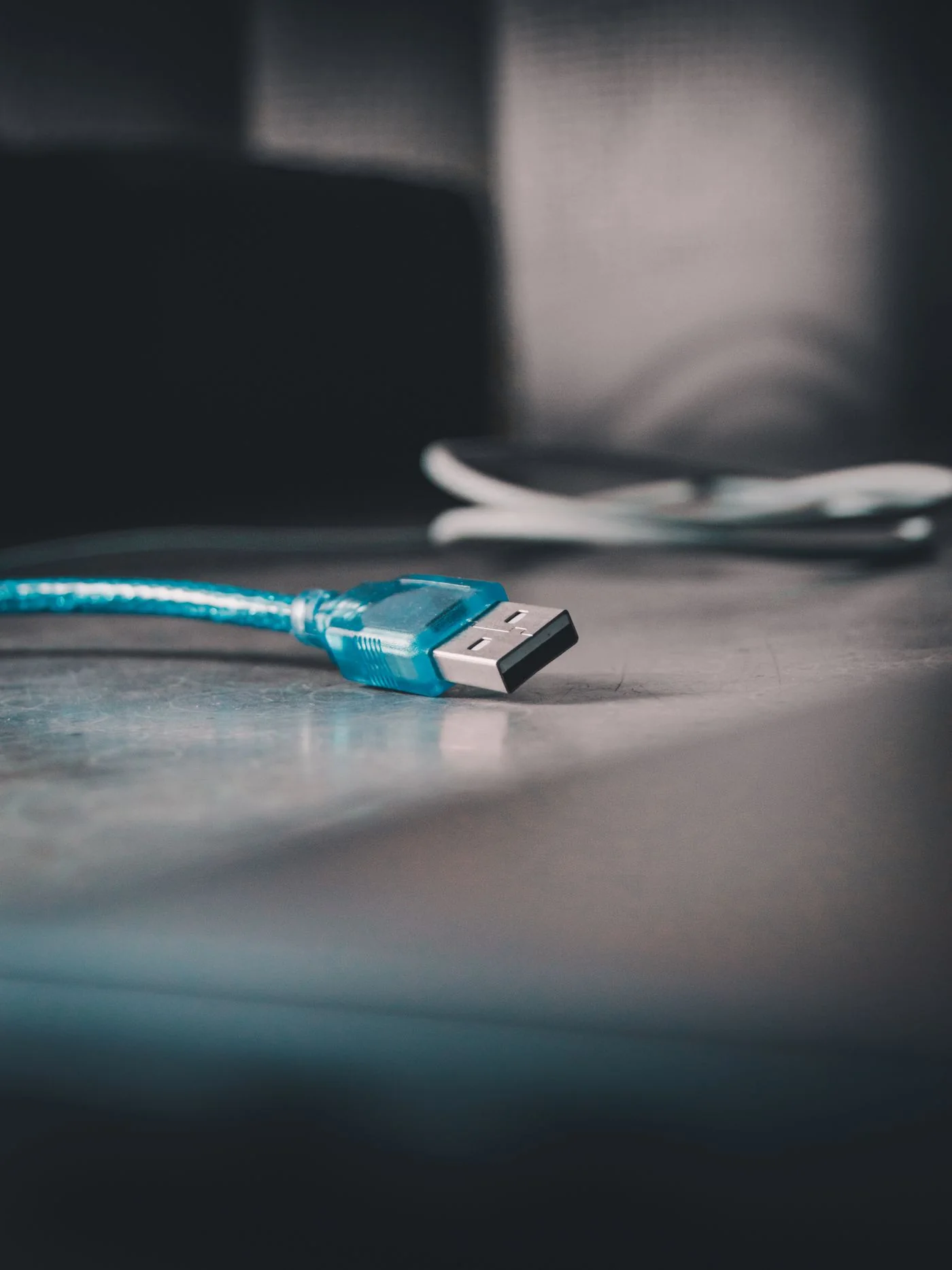
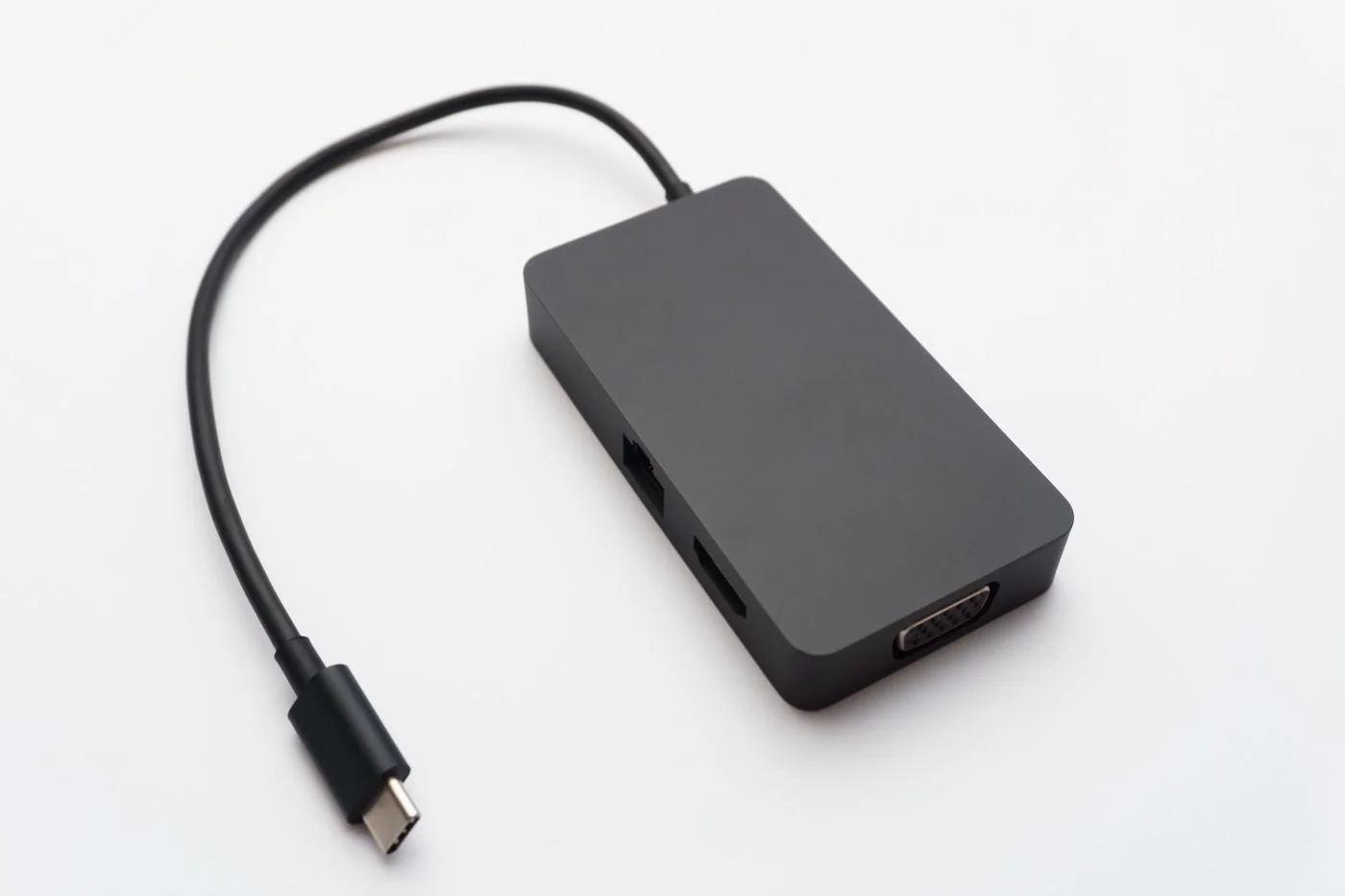
Check that the display cable is seated without tension and that the monitor has stable power. Inspect connectors and cables for damage. If a dock or adapter is involved, compare a supported direct connection where possible. Test one monitor first so the result is not mixed with a multi-display bandwidth limit.
Use a known suitable replacement cable if available, keeping the same ports and settings. A different cable that also changes the resolution is not a clean comparison. Record which arrangement is stable. Avoid repeatedly bending or wiggling a damaged connector to obtain a temporary picture.
Check supported display settings
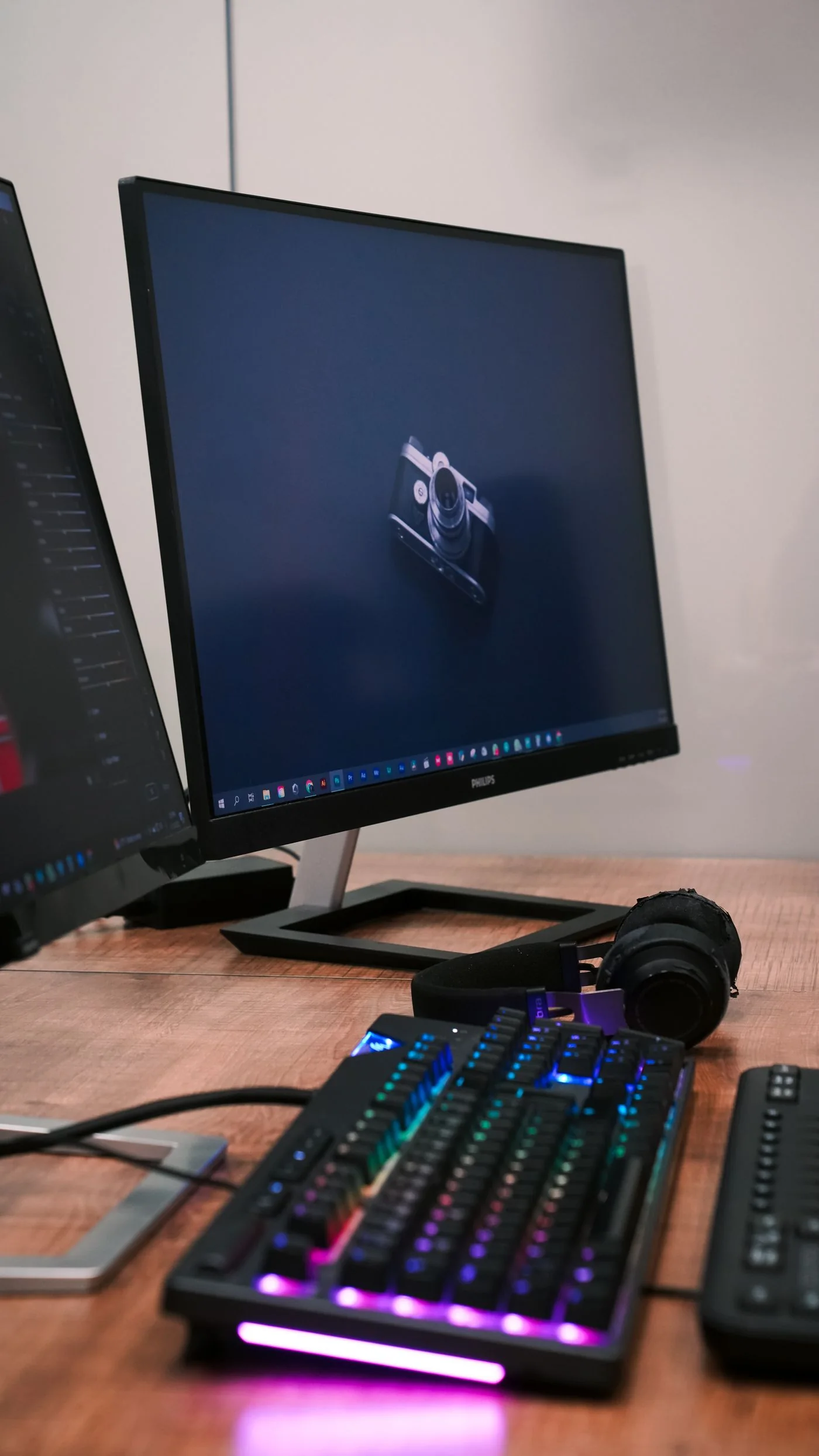
Review the selected resolution and refresh rate against the monitor, dock and computer specifications. Choose a documented supported combination for the initial test. If special display features are enabled, consult their official troubleshooting instructions before changing them. Make one change at a time and retain the previous value.
If only one application is affected while the desktop and other applications remain stable, investigate that application's updates and graphics settings. If the monitor's own on-screen menu flickers too, mention this to support; the symptom is no longer limited to the incoming computer picture.
Confirm stability over ordinary use
Once the image appears stable, test the activity that originally triggered the problem. Include waking from sleep or reconnecting the dock if relevant. A few seconds of a static desktop is not enough to establish that an intermittent issue has gone away.
Provide support with model numbers, connection chain, settings and the comparison results if the fault persists. Do not open a monitor or power supply to investigate internal components. If there is a burning smell, damaged power connection or other electrical warning sign, stop use and arrange appropriate service rather than continuing display experiments.