Understand the intended connection
Some computers use separate headphone and microphone sockets; others use a combined headset socket. A headset with a combined analogue plug may need a suitable headset splitter for separate sockets. An ordinary headphone-sharing splitter is a different product and does not necessarily provide the required microphone path.
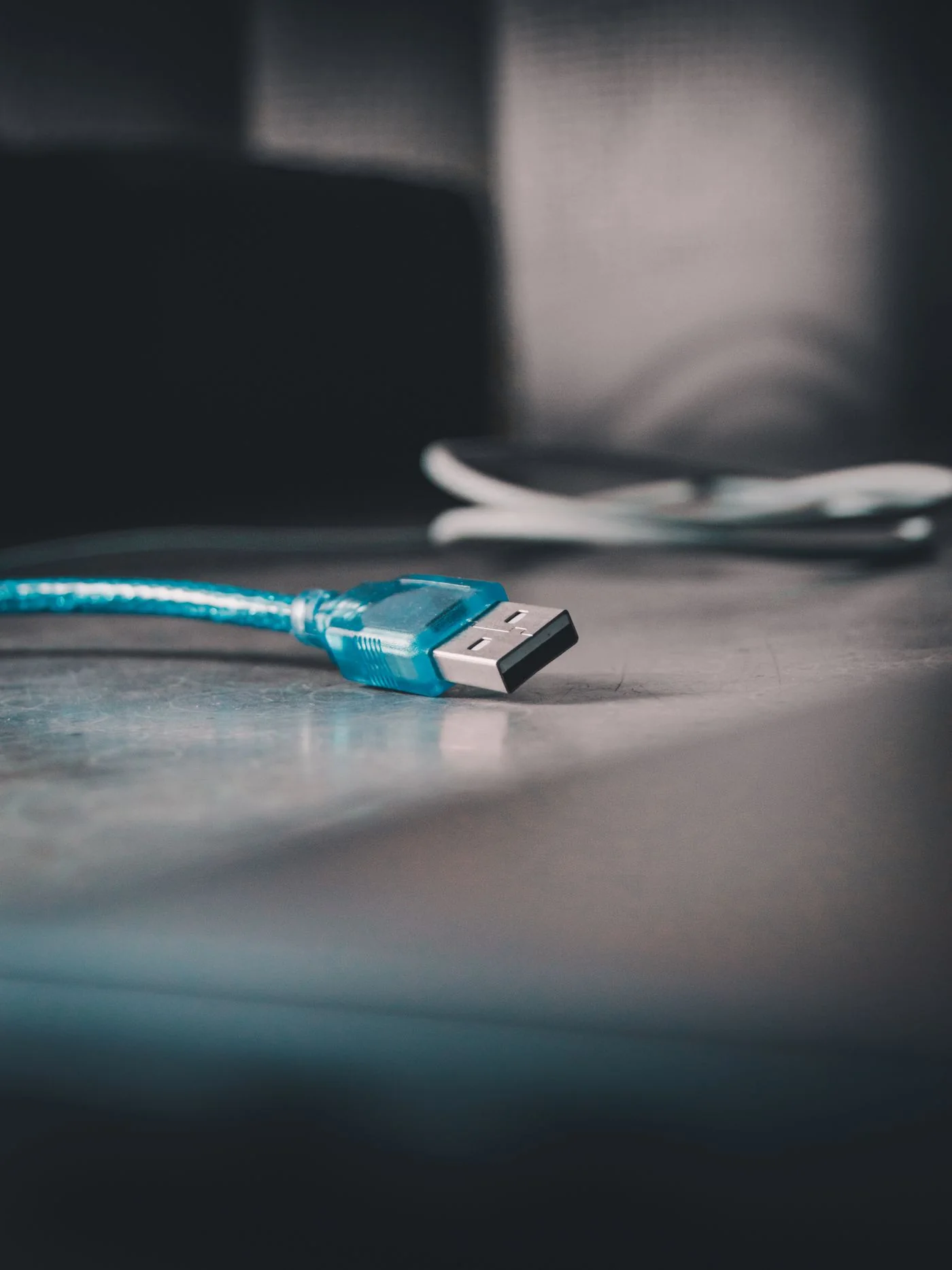
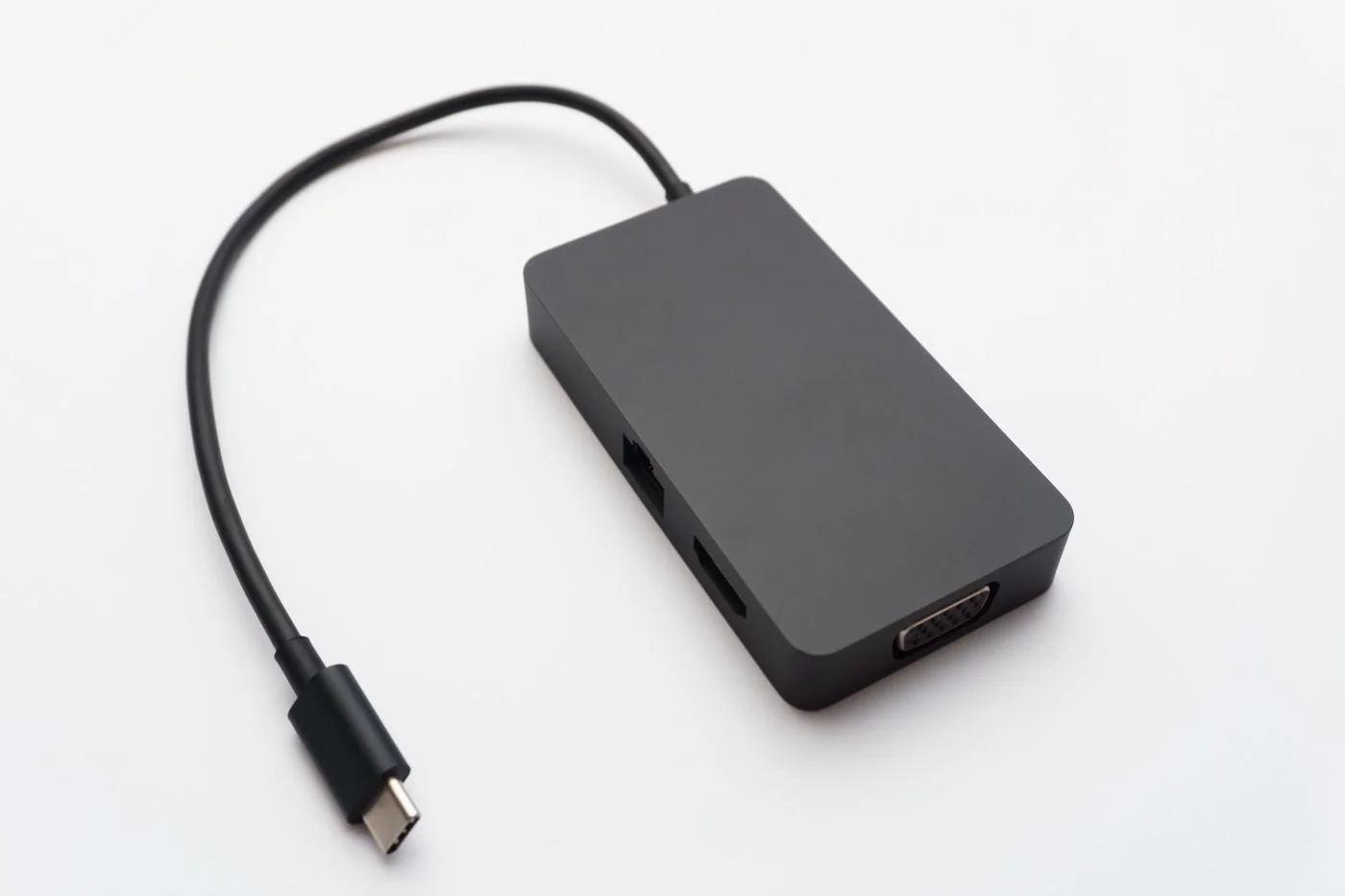
Check the headset and computer manuals for the supported wiring and adapter. Do not choose solely by the number of matching holes. An adapter intended for one direction or connector arrangement may not work in another. If using USB audio, confirm that the adapter supports microphone input as well as headphone output.
For a headset supplied with its own USB controller or wireless receiver, test the documented arrangement first. Its controls and microphone functions may depend on that component. A detachable cable can also be model-specific, even when the connector resembles a common audio plug.
Test both halves of the job
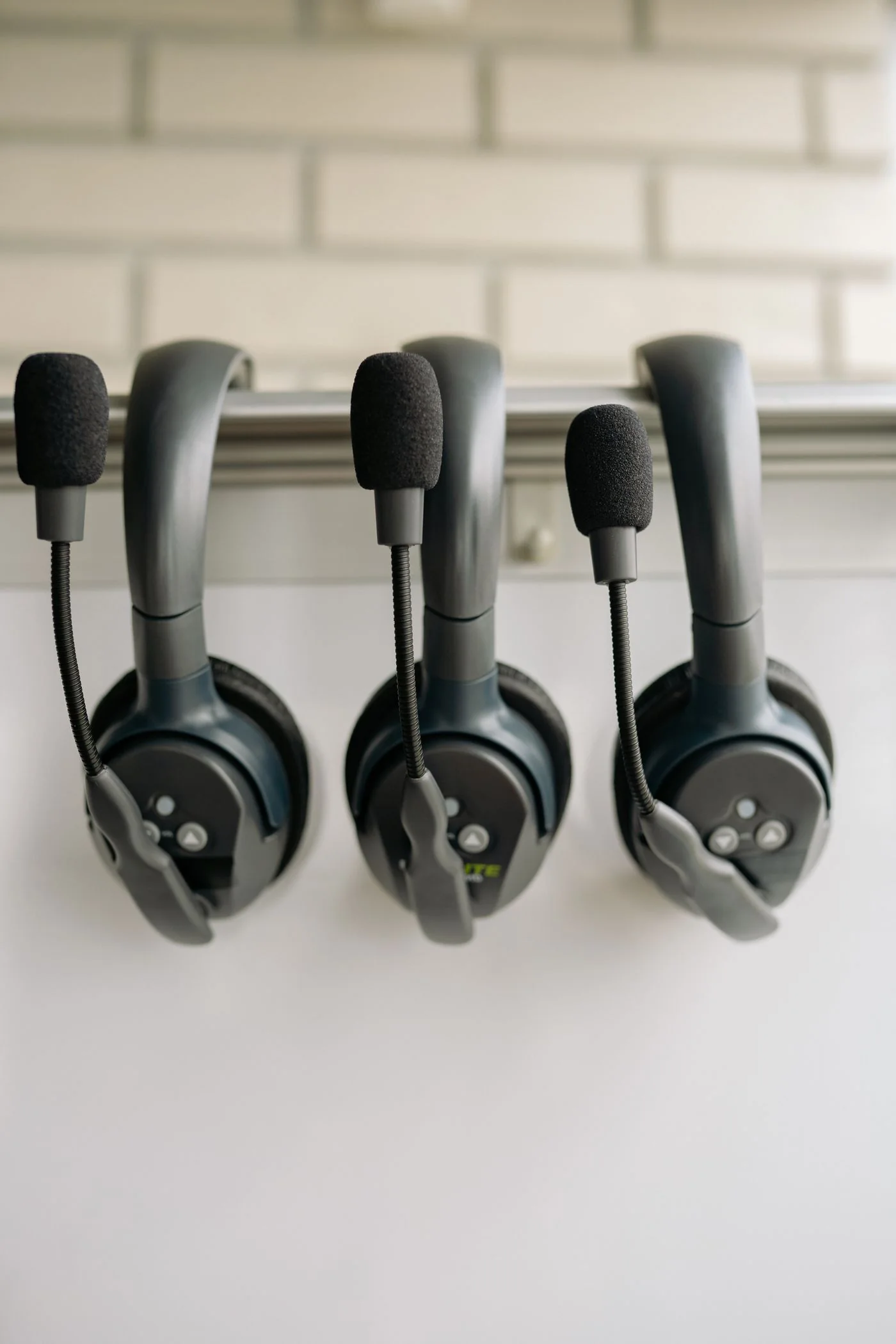
Connect the headset and select its output and input in the system or meeting application. Play a low-volume test sound, then use a microphone test to confirm voice input. Start at a modest volume rather than wearing the headset while an unknown output level is at maximum.
Check physical mute controls and whether the plug is fully seated without force. A partially inserted analogue plug can produce incomplete or unusual audio. If the result changes when the cable moves, inspect for damage rather than holding it in place as a permanent solution.
Once the connection works, test the controls you use during calls, such as mute and volume. Do not assume every adapter preserves remote-button functions. Keep the supported adapter with the headset and label it if several similar parts share a drawer. This prevents a working setup from becoming uncertain each time it is packed for another workplace.