Choose the socket you actually use
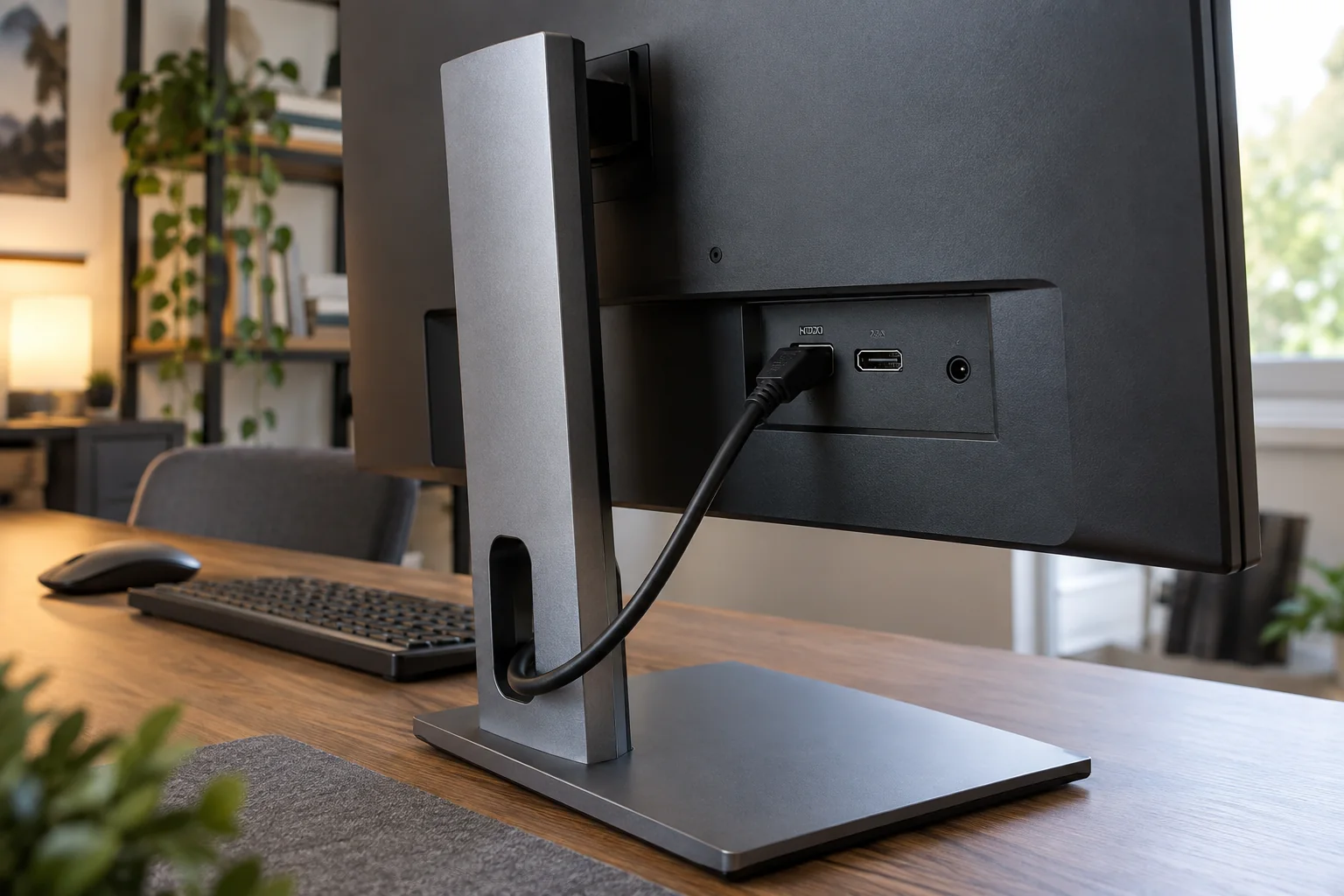
Read the label beside the connected monitor socket, such as HDMI 1, HDMI 2 or DisplayPort. Open the monitor's own input menu using its buttons or joystick and select that entry. Consult the model's manual if the controls are unclear; button functions differ between displays.
If several computers share the monitor, note which input belongs to each one. Automatic input selection may choose an active device you did not intend to use, or fail to change after a dock reconnects. A deliberate manual selection provides a useful test without altering either computer.
Some USB-C monitors have more than one USB-C socket, with different roles. Check which is the upstream video connection and which serves accessories. A cable plugged into a data or charging socket may not provide the monitor's expected video input. The same connector shape is not sufficient evidence.
Follow the result
If the monitor menu appears but the chosen input still reports no signal, check that the computer is awake and the video cable is seated. With a laptop, inspect its built-in screen and display settings. If the monitor is detected but disabled, enable the intended display arrangement through the system's controls.
Try one known supported connection without unnecessary adapters or extra displays. Keep the selected monitor input matched to that test. If changing the cable also changes the input type, remember to change the menu selection as well; otherwise the comparison is incomplete.
Once the image appears, label the relevant cable or record the input in the desk setup notes. This is especially useful for shared desks and monitors with an input menu hidden behind several button presses. If even the monitor's own menu is absent, investigate its power and controls first. That is a different problem from choosing between video inputs.