Define the arrangement you want
Decide whether you need an extended desktop, where each display can show different windows, or a duplicated picture. A simple splitter often duplicates one signal; it does not create an additional independent desktop. Describe your requirement in those terms when asking a supplier about compatibility.
Write down the intended resolution and refresh rate of each monitor. Two displays used for documents may have different requirements from high-refresh media work. Check whether you want the laptop lid open or closed. Some models change their supported arrangements with lid state or external power, so use the exact model's documentation rather than a general brand claim.
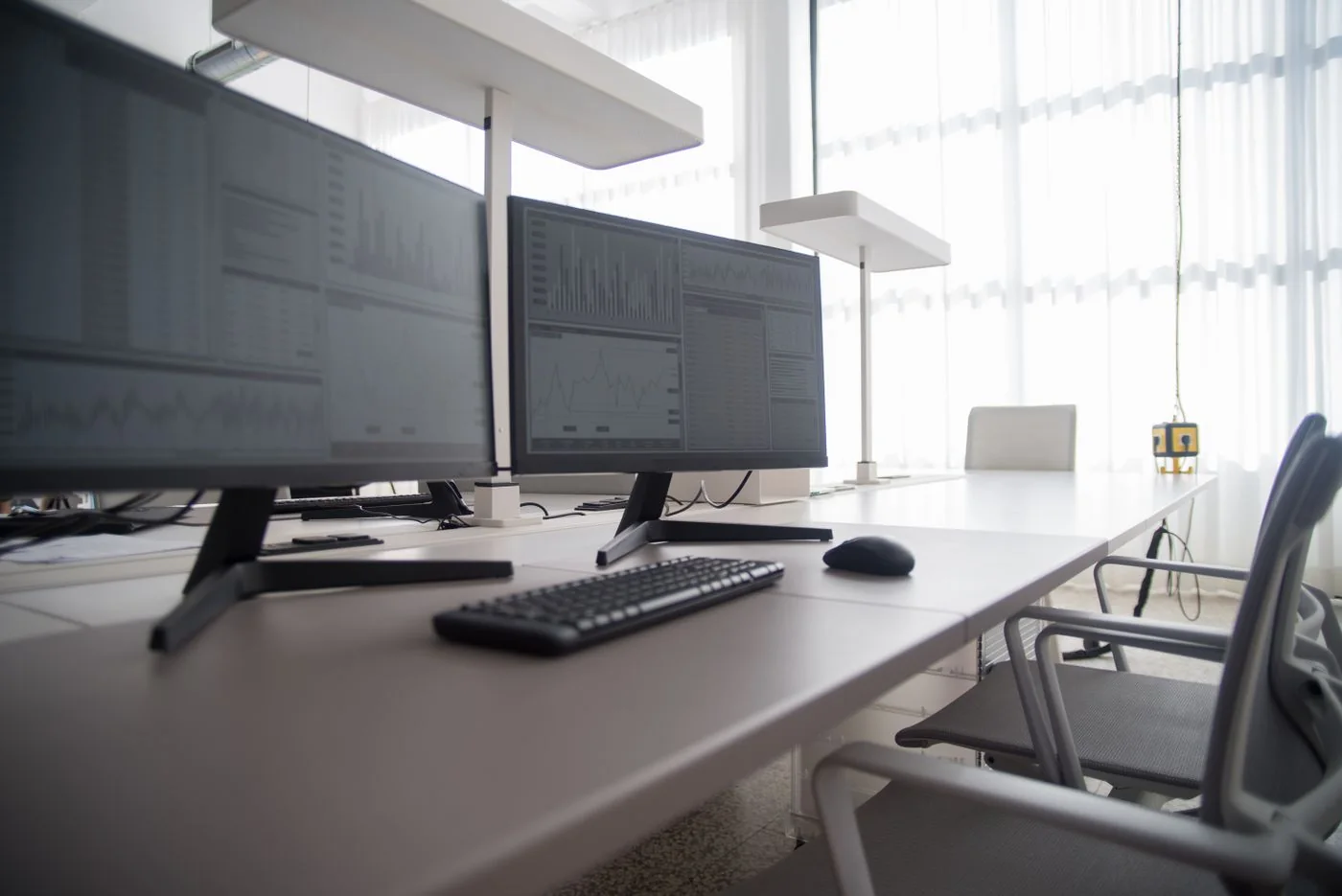
Measure the desk before buying. Two usable screens also require suitable viewing positions, cable routes and room for the keyboard. If the second monitor will sit far to one side and be used continuously, consider whether a different layout or one larger display better fits the task. This is a workspace choice alongside the technical one.
Check the computer first
Find the full model and processor or chip configuration. Manufacturer specifications should state the supported external-display arrangements and any relevant limits. Closely related models can differ. On a Mac, consult Apple's display guidance for the exact model rather than assuming a dock overrides the computer's native limit.
Identify the ports available for the connection. A supported direct output plus a dock output may have different constraints from two outputs on the same dock. Do not assume separate sockets always provide independent resources. Read the manufacturer's documented combinations or ask for confirmation with the intended model and settings.
Then check the dock and its technology
Read the dock's compatibility table, including operating-system notes. Some products use native display signals, others use USB graphics software, and some combine methods. Software-based graphics may require installation and permissions and can have limitations for certain workloads. Confirm those details before choosing it for a managed work computer.
For each output, check which other outputs can be active simultaneously. A maximum advertised resolution may apply to one screen, while two screens use a lower supported combination. The host connection and cable must also meet the dock's requirements. A charging-capable cable alone does not establish the necessary display connection.
If the documentation describes daisy chaining, verify that the computer, operating system and monitors support the required chain. A monitor needs the appropriate output as well as an input to pass a signal onward. Connecting two inputs together does not form a chain. Avoid buying an extra cable until the supported topology is clear.
Set up one display at a time
Connect the first monitor and verify its intended setting. Add the second, then identify the screens in the operating system's display view. Choose extension if you want separate workspaces. Arrange the on-screen rectangles to match their physical left-right and vertical positions so the pointer crosses at a predictable place.
Set scaling for each screen so text is comfortable to read. Different physical sizes and pixel densities can make identical percentage values look different. Open your usual applications and move a window between displays to check the result. Keep the primary screen choice consistent with where you do most work.
Verify ordinary transitions
Test reconnecting the dock, waking from sleep and using the laptop away from the desk. Confirm that the expected displays return and that windows remain accessible. A configuration that works during the first connection but repeatedly loses a screen needs further investigation before you rely on it for meetings.
Keep a record of the successful port, cables and display settings. If support is needed, provide that configuration and the exact step that fails. This is more useful than asking whether the laptop “supports two monitors”, because it captures the resolution, operating system and connection that determine the answer.