Frame the person, then the room
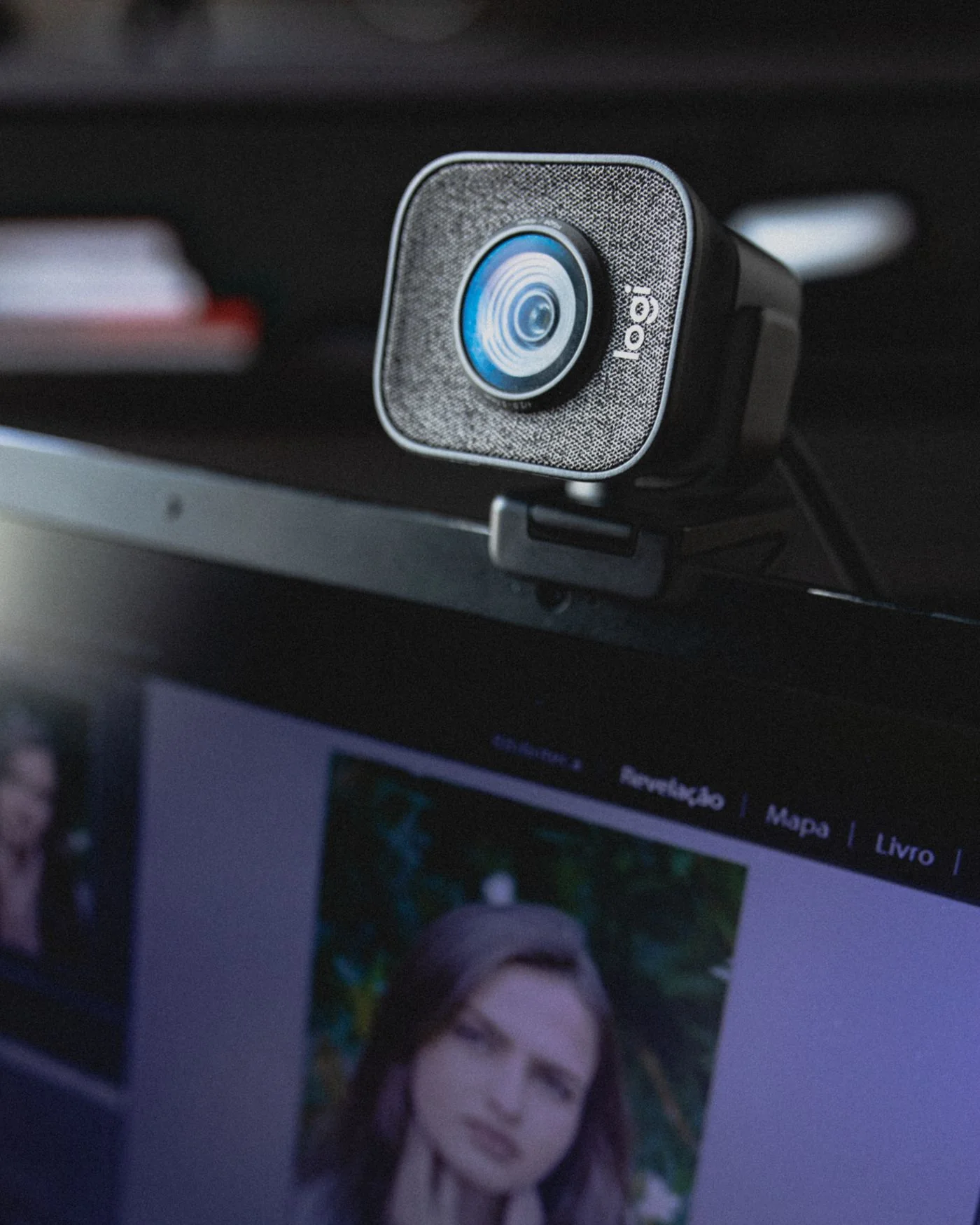
Place the camera near the display used for the call, at a height that avoids a strong view up from the keyboard or down from a shelf. Open the application's preview and check that your face remains in frame when you move naturally. Leave a little space above the head rather than filling the image with an extreme close-up.
Keep frequently read notes near the camera's direction where possible. A camera on one monitor while the conversation is displayed far to the side makes normal screen reading look like looking away. You do not need to stare into the lens continuously; the aim is a workable relationship between the camera and the material you use.
Check the background for private documents, whiteboards and reflections. A blur effect is not a guarantee that sensitive information cannot be seen. Move or cover material that should not appear, and test framing again if the chair or monitor position changes.
Use light and a stable mount
Light from in front or slightly to the side usually gives the camera an easier scene than a bright window directly behind you. Test at the time of day the call will take place. Avoid balancing the camera on unstable objects or stretching its cable across a route where it can be pulled.
Use a mount appropriate to the camera and display. Keep ventilation openings and monitor controls clear. If a laptop is raised for camera position, use an arrangement that still allows comfortable typing, such as a separate keyboard and mouse where appropriate.
Finish with a short test in the actual meeting application, since its crop may differ from another camera viewer. Check the selected camera, not just the preview of a different device. Close the preview and use the hardware shutter or your normal privacy control when the camera is no longer needed.